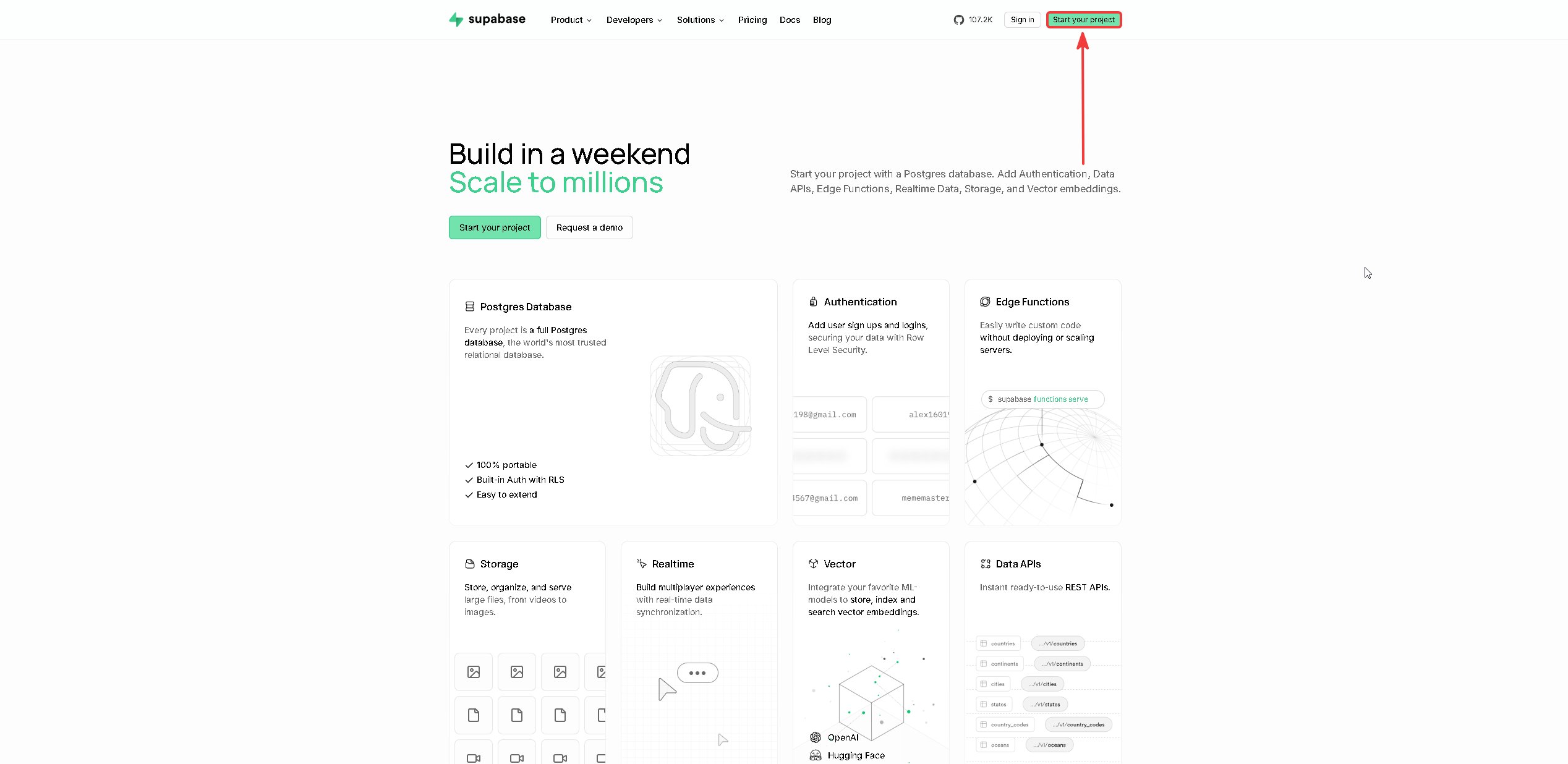
Create your project
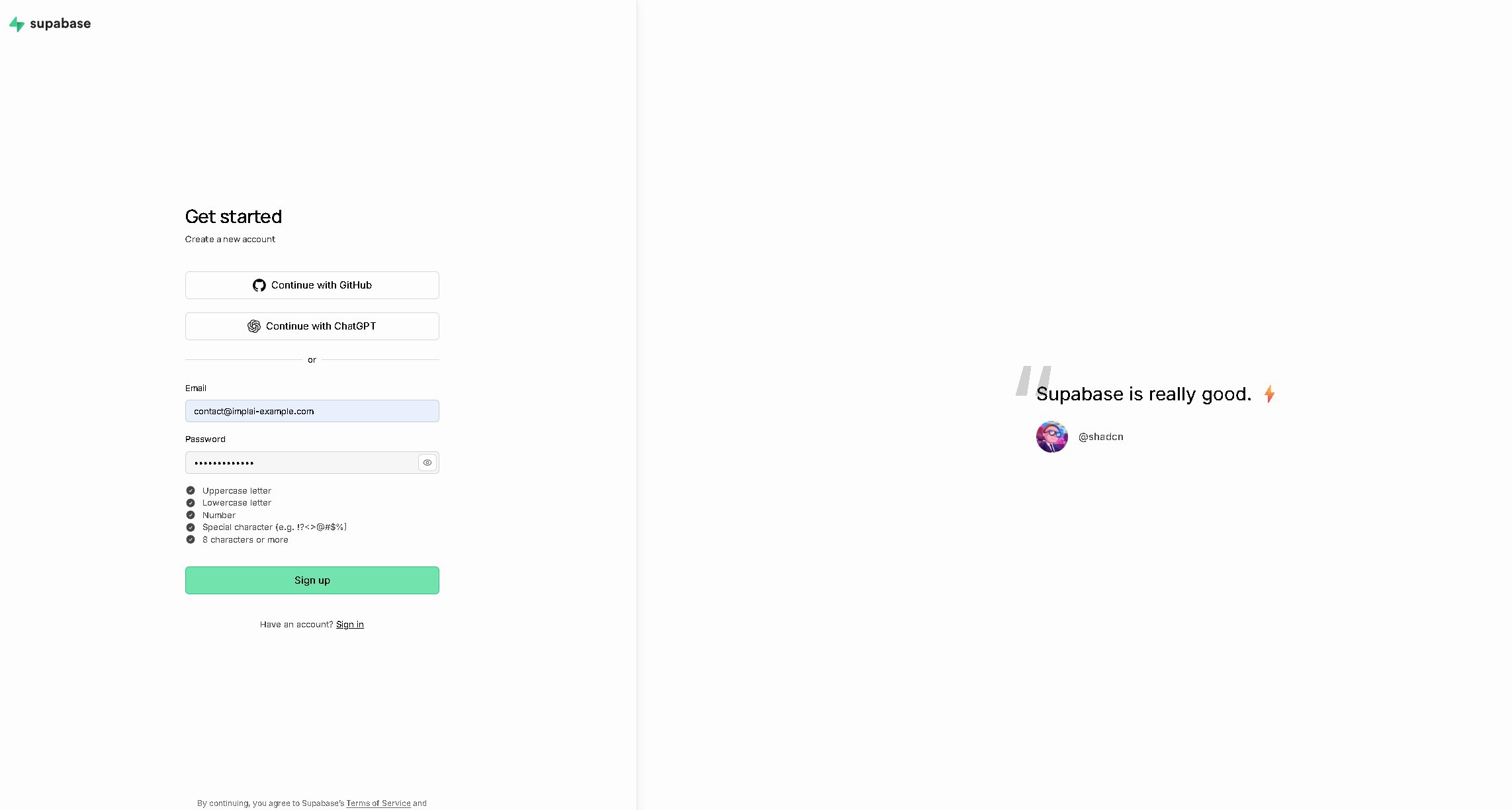
Sign up
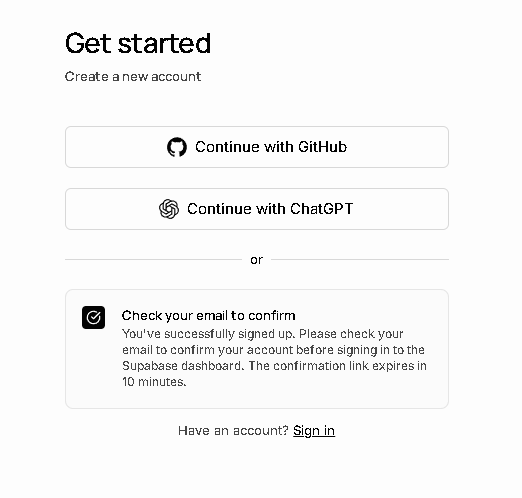
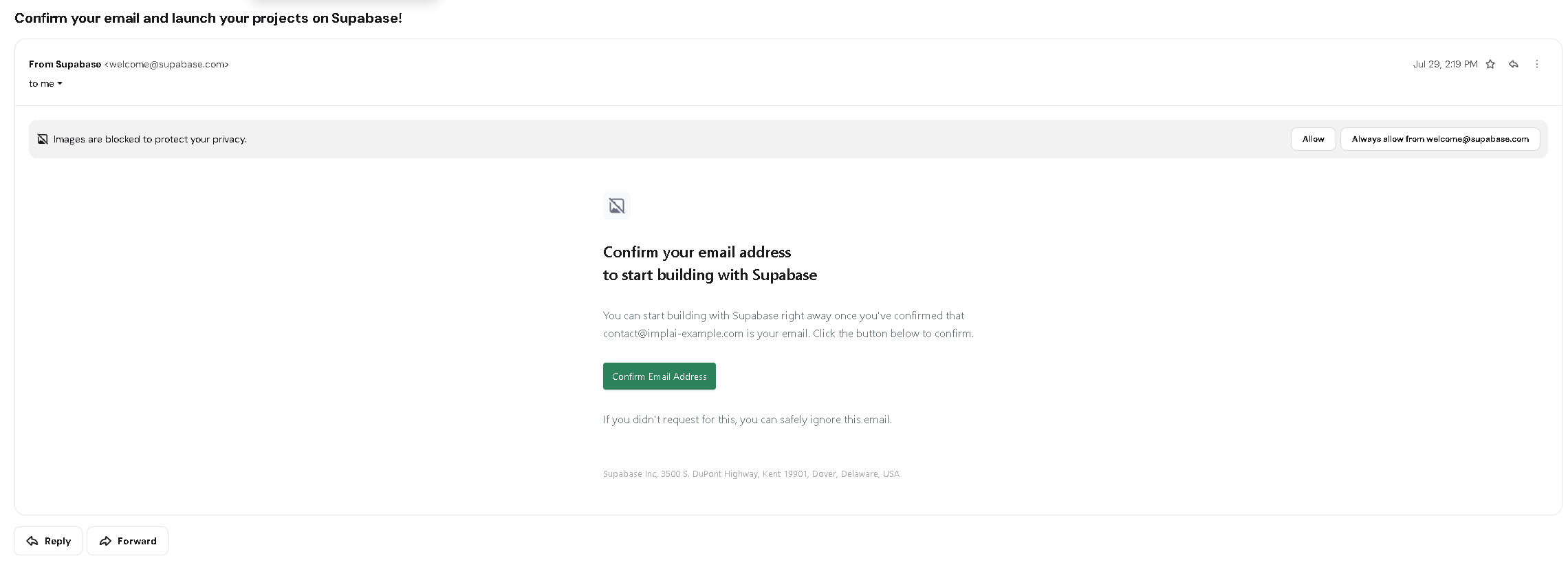
Confirm your email
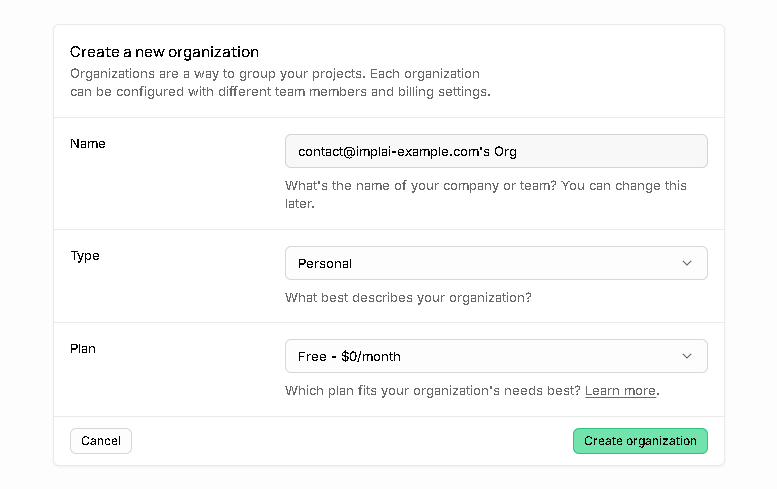
Create your organisation
Create your project
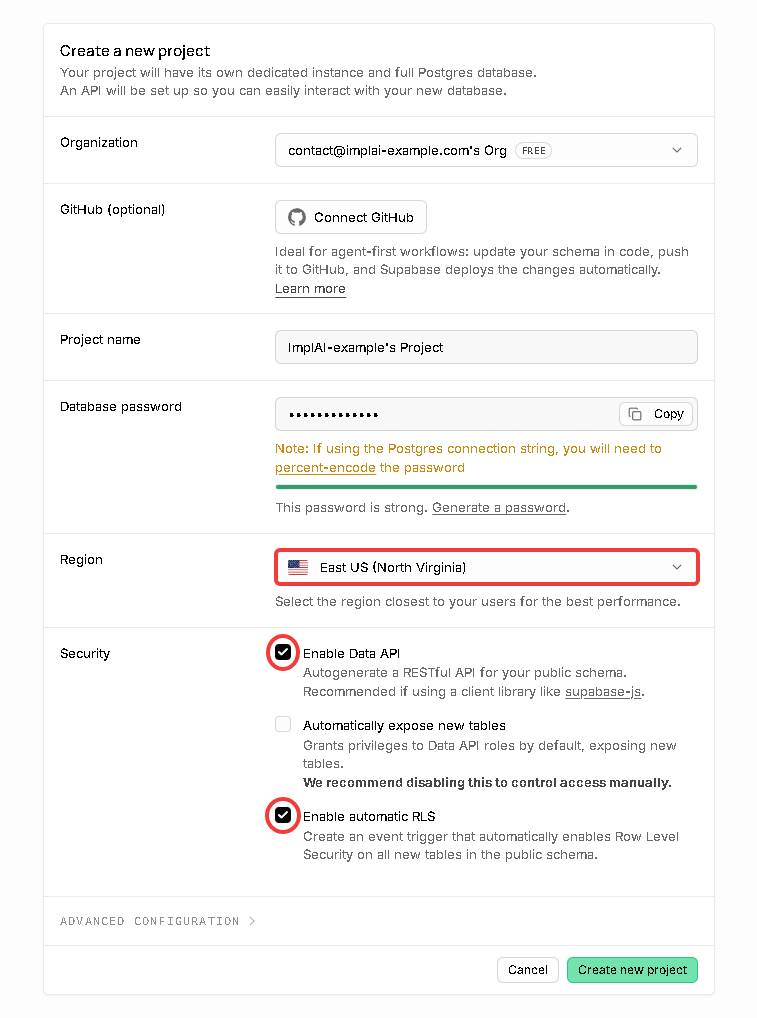
Region and the three security settings are the choices that matter on this page.
Build the database
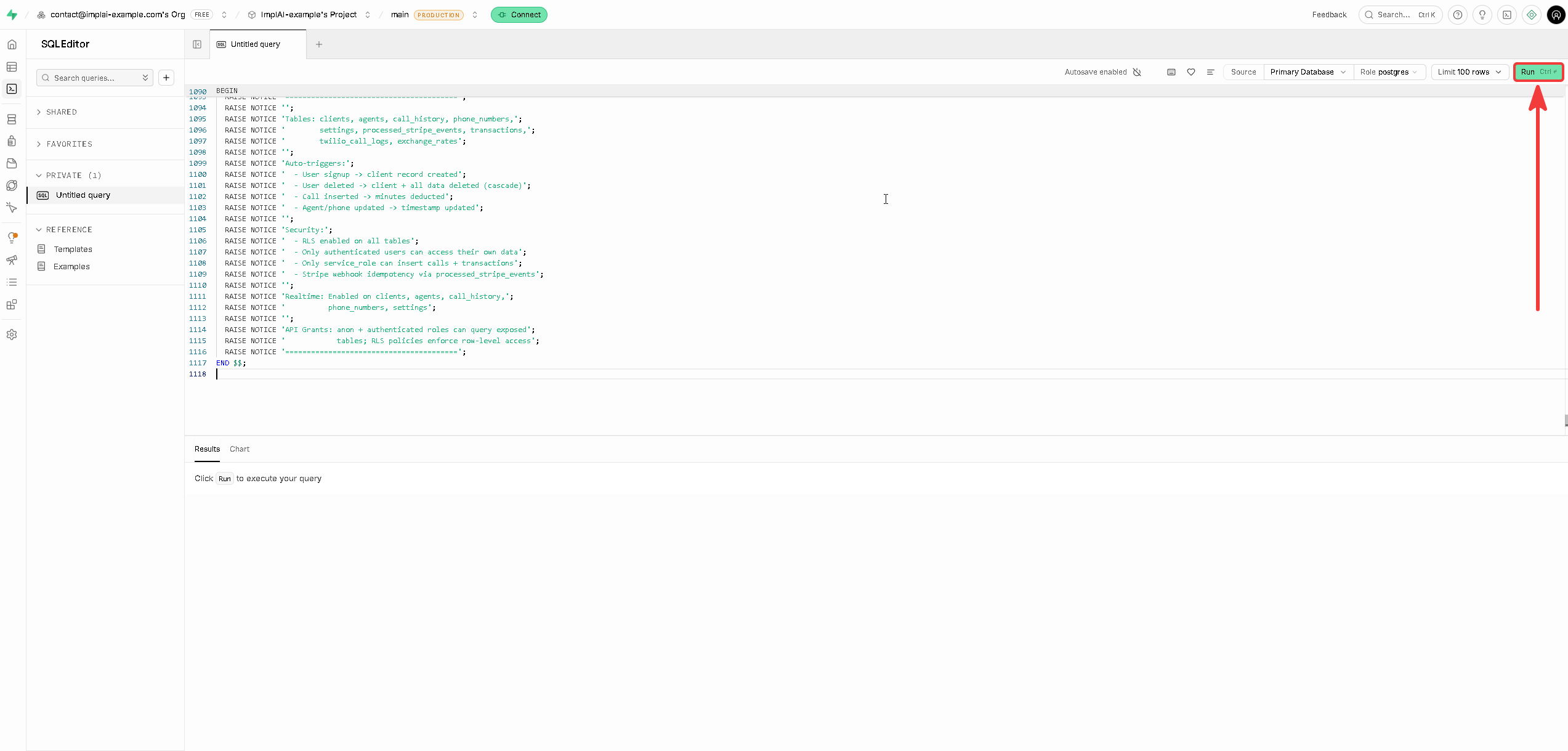
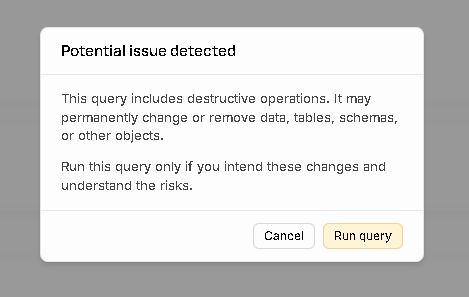
Your database starts empty. This step creates every table your platform needs, along with the security rules and automations that make them work.Open the SQL editor
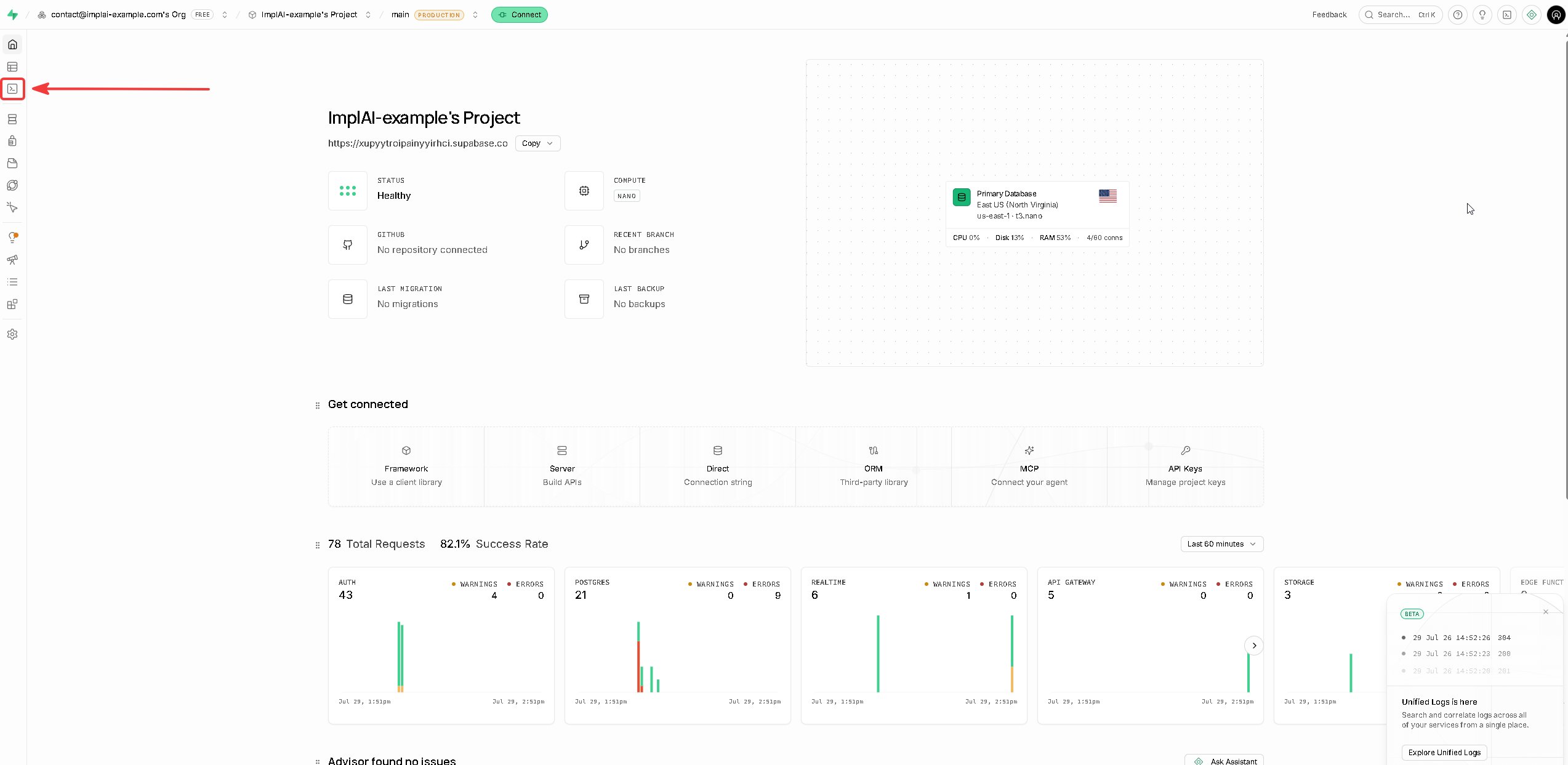
Run the setup script
-- ========================================
-- PRODUCTION-READY SAAS SCHEMA
-- Final version - Optimized for performance, security, and real-time
-- ========================================


-- ========================================
-- 1. TABLES
-- ========================================

CREATE TABLE IF NOT EXISTS public.clients (
  id uuid NOT NULL DEFAULT gen_random_uuid(),
  user_id uuid NOT NULL UNIQUE,
  company_name text,
  email text,
  minutes_included integer NOT NULL DEFAULT 0,
  minutes_used integer NOT NULL DEFAULT 0,
  stripe_customer_id text UNIQUE,
  created_at timestamp with time zone NOT NULL DEFAULT now(),
  PRIMARY KEY (id)
);


CREATE TABLE IF NOT EXISTS public.agents (
  id uuid NOT NULL DEFAULT gen_random_uuid(),
  client_id uuid NOT NULL,
  agent_name text,
  retell_agent_id text NOT NULL,
  retell_llm_id text,
  prompt text,
  begin_message text,                 -- First sentence spoken by the agent on every call.
  voice text DEFAULT 'cartesia-Adrian'::text,
  language text DEFAULT 'en-US'::text,
  timezone text DEFAULT 'UTC'::text,  -- IANA timezone for current_time in the agent's system prompt context.
  transfer_calls jsonb DEFAULT NULL,  -- [{ "name": "...", "phone_number": "...", "description": "..." }]
  cal_com jsonb DEFAULT NULL,         -- { "event_type_id": "...", "timezone": "...", "cal_api_key": "..." }
  created_at timestamp with time zone NOT NULL DEFAULT now(),
  updated_at timestamp with time zone NOT NULL DEFAULT now(),
  PRIMARY KEY (id),
  UNIQUE (retell_agent_id),
  CONSTRAINT agents_client_id_fkey FOREIGN KEY (client_id) REFERENCES public.clients(user_id) ON DELETE CASCADE
);

-- Idempotent: adds begin_message and timezone to existing dbs that pre-date these columns.
ALTER TABLE public.agents ADD COLUMN IF NOT EXISTS begin_message text;
ALTER TABLE public.agents ADD COLUMN IF NOT EXISTS timezone text DEFAULT 'UTC';


CREATE TABLE IF NOT EXISTS public.call_history (
  id uuid NOT NULL DEFAULT gen_random_uuid(),
  phone_number text,
  retell_agent_id text,
  transcript text,
  call_summary text,                     -- 2-3 sentence summary extracted by Retell's post-call analysis
  retell_call_id text,
  call_duration_seconds integer,
  call_status text,
  retell_cost numeric(10, 4),            -- Computed at insert time: call_duration_seconds × $0.094 / 60. Feeds the profit dashboard.
  twilio_call_sid text,                  -- From Retell webhook payload (telephony_identifier.twilio_call_sid). Links to twilio_call_logs.call_sid for end-to-end cost attribution.
  disconnection_reason text,             -- Retell's raw reason the call ended (user_hangup, agent_hangup, call_transfer, inactivity, max_duration_reached, ...). call_transfer = the call was handed to a human.
  appointment_booked boolean NOT NULL DEFAULT false, -- True when tool activity shows a successful book_calendar_appointment result (deterministic, from Cal.com's confirmation, not the LLM's claim).
  user_sentiment text,                   -- Positive / Neutral / Negative, from Retell's post-call analysis.
  call_successful boolean,               -- Retell's post-call judgment: did the agent accomplish what the caller wanted. Nullable: analysis may not produce it; never guessed.
  created_at timestamp with time zone NOT NULL DEFAULT now(),
  PRIMARY KEY (id),
  UNIQUE (retell_call_id),
  CONSTRAINT call_history_retell_agent_id_fkey FOREIGN KEY (retell_agent_id) REFERENCES public.agents(retell_agent_id) ON DELETE SET NULL
);

-- Idempotent: adds columns to existing dbs that pre-date them (summary/cost
-- columns, then the call-outcome columns: disconnection_reason,
-- appointment_booked, user_sentiment, call_successful).
ALTER TABLE public.call_history ADD COLUMN IF NOT EXISTS call_summary text;
ALTER TABLE public.call_history ADD COLUMN IF NOT EXISTS retell_cost numeric(10, 4);
ALTER TABLE public.call_history ADD COLUMN IF NOT EXISTS twilio_call_sid text;
ALTER TABLE public.call_history ADD COLUMN IF NOT EXISTS disconnection_reason text;
ALTER TABLE public.call_history ADD COLUMN IF NOT EXISTS appointment_booked boolean NOT NULL DEFAULT false;
ALTER TABLE public.call_history ADD COLUMN IF NOT EXISTS user_sentiment text;
ALTER TABLE public.call_history ADD COLUMN IF NOT EXISTS call_successful boolean;
CREATE INDEX IF NOT EXISTS idx_call_history_twilio_sid ON public.call_history(twilio_call_sid) WHERE twilio_call_sid IS NOT NULL;

-- Migrate existing CASCADE constraint to SET NULL (preserves call history when agent is deleted)
DO $$ BEGIN
  ALTER TABLE public.call_history DROP CONSTRAINT IF EXISTS call_history_retell_agent_id_fkey;
  ALTER TABLE public.call_history
    ADD CONSTRAINT call_history_retell_agent_id_fkey
    FOREIGN KEY (retell_agent_id)
    REFERENCES public.agents(retell_agent_id)
    ON DELETE SET NULL;
END $$;

-- Overview dashboard aggregates. Computes both the selected window
-- ('current': last p_days) and the equal-length window before it
-- ('previous') in one pass, entirely in Postgres, so the overview stays
-- exact at any call volume (client-side aggregation would silently truncate
-- at the API's max-rows cap). SECURITY INVOKER (the default): RLS on
-- call_history still applies to the calling user, so p_agent_ids can only
-- ever surface rows the caller is allowed to read anyway.
CREATE OR REPLACE FUNCTION public.overview_call_stats(
  p_agent_ids text[],
  p_days integer
)
RETURNS TABLE (
  window_label text,
  total_calls bigint,
  failed_calls bigint,
  total_duration_seconds bigint,
  booked_calls bigint,
  transferred_calls bigint,
  negative_calls bigint,
  judged_calls bigint,
  successful_calls bigint
)
LANGUAGE sql
STABLE
AS $$
  SELECT
    CASE WHEN created_at >= now() - make_interval(days => p_days) THEN 'current' ELSE 'previous' END,
    count(*),
    count(*) FILTER (WHERE call_status IN ('not_connected', 'error')),
    coalesce(sum(call_duration_seconds), 0)::bigint,
    count(*) FILTER (WHERE appointment_booked),
    count(*) FILTER (WHERE disconnection_reason = 'call_transfer'),
    count(*) FILTER (WHERE user_sentiment = 'Negative'),
    count(*) FILTER (WHERE call_successful IS NOT NULL),
    count(*) FILTER (WHERE call_successful IS TRUE)
  FROM public.call_history
  WHERE retell_agent_id = ANY(p_agent_ids)
    AND created_at >= now() - make_interval(days => 2 * p_days)
  GROUP BY 1;
$$;

-- Called from the browser (overview page) as the logged-in user; RLS on
-- call_history scopes the rows. Explicit grant matches the convention used
-- for get_profit_chart_buckets instead of relying on default privileges.
GRANT EXECUTE ON FUNCTION public.overview_call_stats(text[], integer)
  TO authenticated, service_role;


CREATE TABLE IF NOT EXISTS public.phone_numbers (
  id uuid NOT NULL DEFAULT gen_random_uuid(),
  client_id uuid NOT NULL,
  phone_number text NOT NULL UNIQUE,
  agent_id uuid,
  twilio_sid text NOT NULL UNIQUE,
  monthly_cost numeric(10,2) NOT NULL DEFAULT 1.15,            -- What the customer pays the buyer (set from Stripe price).
  twilio_rental_cost_usd numeric(10, 2) NOT NULL DEFAULT 1.15,  -- What the buyer pays Twilio. Hardcoded $1.15 today (US/CA local numbers). Stored per-row so it stays historically accurate if Twilio raises rates or if we ever expand to countries with different rental costs.
  stripe_subscription_item_id text,
  status text NOT NULL DEFAULT 'active',
  created_at timestamp with time zone NOT NULL DEFAULT now(),
  updated_at timestamp with time zone NOT NULL DEFAULT now(),
  PRIMARY KEY (id),
  CONSTRAINT phone_numbers_status_check CHECK (status IN ('active', 'inactive')),
  CONSTRAINT phone_numbers_client_id_fkey FOREIGN KEY (client_id) REFERENCES public.clients(user_id) ON DELETE CASCADE,
  CONSTRAINT phone_numbers_agent_id_fkey FOREIGN KEY (agent_id) REFERENCES public.agents(id) ON DELETE SET NULL
);


-- ========================================
-- 2. ENABLE ROW LEVEL SECURITY
-- ========================================

ALTER TABLE public.clients ENABLE ROW LEVEL SECURITY;
ALTER TABLE public.agents ENABLE ROW LEVEL SECURITY;
ALTER TABLE public.call_history ENABLE ROW LEVEL SECURITY;
ALTER TABLE public.phone_numbers ENABLE ROW LEVEL SECURITY;


-- ========================================
-- 3. FUNCTIONS
-- ========================================

-- Deduct minutes from client when call completes
-- SECURITY DEFINER + explicit search_path: protects against search_path
-- injection by ensuring the function only resolves objects from public + pg_temp.
CREATE OR REPLACE FUNCTION public.deduct_minutes()
RETURNS TRIGGER AS $$
DECLARE
  target_client_id uuid;
  minutes_to_add numeric;
BEGIN
  -- Get agent's client_id
  SELECT a.client_id INTO target_client_id
  FROM agents a
  WHERE a.retell_agent_id = NEW.retell_agent_id;

  IF target_client_id IS NULL THEN
    RAISE EXCEPTION 'No agent found for call: %', NEW.retell_agent_id;
  END IF;

  -- Calculate minutes (round up to nearest minute)
  minutes_to_add := CEIL(COALESCE(NEW.call_duration_seconds, 0)::NUMERIC / 60);

  -- Update client minutes
  UPDATE clients
  SET minutes_used = minutes_used + minutes_to_add
  WHERE user_id = target_client_id;

  RETURN NEW;
END;
$$ LANGUAGE plpgsql SECURITY DEFINER SET search_path = public, pg_temp;


-- Auto-update updated_at timestamp
CREATE OR REPLACE FUNCTION public.update_updated_at_column()
RETURNS TRIGGER AS $$
BEGIN
  NEW.updated_at = NOW();
  RETURN NEW;
END;
$$ LANGUAGE plpgsql;


-- Automatically create client record when user signs up
CREATE OR REPLACE FUNCTION public.handle_new_user()
RETURNS TRIGGER AS $$
BEGIN
  INSERT INTO public.clients (user_id, email, company_name, minutes_included, minutes_used)
  VALUES (
    NEW.id,
    NEW.email,
    NEW.raw_user_meta_data->>'company_name',
    0,
    0
  );
  RETURN NEW;
EXCEPTION
  WHEN unique_violation THEN
    RETURN NEW;
END;
$$ LANGUAGE plpgsql SECURITY DEFINER SET search_path = public, pg_temp;


-- Automatically delete client record when user is deleted (CASCADE to agents, phone_numbers).
-- We also wipe call_history for the user's agents BEFORE the cascade runs:
-- the FK on call_history is ON DELETE SET NULL, so without this rows would survive
-- with NULL retell_agent_id, leaving caller phone numbers and transcripts orphaned
-- and undeleteable through normal flows. For privacy/GDPR compliance, those need
-- to go when the account that collected them goes.
CREATE OR REPLACE FUNCTION public.handle_user_delete()
RETURNS TRIGGER AS $$
BEGIN
  DELETE FROM public.call_history
  WHERE retell_agent_id IN (
    SELECT retell_agent_id FROM public.agents WHERE client_id = OLD.id
  );

  DELETE FROM public.clients WHERE user_id = OLD.id;
  RETURN OLD;
END;
$$ LANGUAGE plpgsql SECURITY DEFINER SET search_path = public, pg_temp;


-- ========================================
-- 4. TRIGGERS
-- ========================================

-- Deduct minutes when call is inserted
DROP TRIGGER IF EXISTS trigger_deduct_minutes ON public.call_history;
CREATE TRIGGER trigger_deduct_minutes
AFTER INSERT ON public.call_history
FOR EACH ROW
EXECUTE FUNCTION public.deduct_minutes();

-- Update timestamps on agents
DROP TRIGGER IF EXISTS trigger_update_updated_at_column ON public.agents;
CREATE TRIGGER trigger_update_updated_at_column
BEFORE UPDATE ON public.agents
FOR EACH ROW
EXECUTE FUNCTION public.update_updated_at_column();

-- Update timestamps on phone_numbers
DROP TRIGGER IF EXISTS trigger_update_phone_numbers_updated_at ON public.phone_numbers;
CREATE TRIGGER trigger_update_phone_numbers_updated_at
BEFORE UPDATE ON public.phone_numbers
FOR EACH ROW
EXECUTE FUNCTION public.update_updated_at_column();

-- Auto-create client when user signs up
DROP TRIGGER IF EXISTS on_auth_user_created ON auth.users;
CREATE TRIGGER on_auth_user_created
AFTER INSERT ON auth.users
FOR EACH ROW
EXECUTE FUNCTION public.handle_new_user();

-- Auto-delete client when user is deleted (cascades to all related data)
DROP TRIGGER IF EXISTS on_auth_user_deleted ON auth.users;
CREATE TRIGGER on_auth_user_deleted
BEFORE DELETE ON auth.users
FOR EACH ROW
EXECUTE FUNCTION public.handle_user_delete();


-- ========================================
-- 5. RLS POLICIES
-- ========================================

-- Clean slate for policies
DROP POLICY IF EXISTS "Users can view own client record" ON public.clients;
DROP POLICY IF EXISTS "Users can insert own client record" ON public.clients;
DROP POLICY IF EXISTS "Users can update own client record" ON public.clients;
DROP POLICY IF EXISTS "Service role can manage clients" ON public.clients;

-- CLIENTS TABLE POLICIES (authenticated users only)
CREATE POLICY "Users can view own client record" ON public.clients
FOR SELECT TO authenticated
USING (auth.uid() = user_id);

CREATE POLICY "Users can update own client record" ON public.clients
FOR UPDATE TO authenticated
USING (auth.uid() = user_id)
WITH CHECK (auth.uid() = user_id);

CREATE POLICY "Service role can manage clients" ON public.clients
FOR ALL TO service_role
USING (true)
WITH CHECK (true);


-- Clean slate for agent policies
DROP POLICY IF EXISTS "Users can view their agents" ON public.agents;
DROP POLICY IF EXISTS "Users can create agents" ON public.agents;
DROP POLICY IF EXISTS "Users can update their agents" ON public.agents;
DROP POLICY IF EXISTS "Users can delete their agents" ON public.agents;
DROP POLICY IF EXISTS "Service role can manage agents" ON public.agents;

-- AGENTS TABLE POLICIES: read-only for users. Every agent write (create,
-- settings save, rename, integrations, delete) goes through API routes
-- using the service role, so no browser write path exists. The old
-- INSERT/UPDATE/DELETE policies (dropped above, deliberately not recreated)
-- let a user write arbitrary values to their own rows via the Supabase API
-- directly — e.g. a retell_agent_id that exists in no Retell account —
-- creating corrupt states no app flow can produce.
CREATE POLICY "Users can view their agents" ON public.agents
FOR SELECT TO authenticated
USING (client_id = auth.uid());

CREATE POLICY "Service role can manage agents" ON public.agents
FOR ALL TO service_role
USING (true)
WITH CHECK (true);


-- Clean slate for call history policies
DROP POLICY IF EXISTS "Allow service to insert calls" ON public.call_history;
DROP POLICY IF EXISTS "Service role can insert calls" ON public.call_history;
DROP POLICY IF EXISTS "Users can view calls for their agent" ON public.call_history;
DROP POLICY IF EXISTS "Service role can manage calls" ON public.call_history;

-- CALL HISTORY TABLE POLICIES
-- Users can view calls for their own agents
CREATE POLICY "Users can view calls for their agent" ON public.call_history
FOR SELECT TO authenticated
USING (
  retell_agent_id IN (
    SELECT agents.retell_agent_id FROM agents WHERE agents.client_id = auth.uid()
  )
);

-- Service role has full access (covers INSERT from Retell webhook + any maintenance)
CREATE POLICY "Service role can manage calls" ON public.call_history
FOR ALL TO service_role
USING (true)
WITH CHECK (true);


-- Clean slate for phone number policies
DROP POLICY IF EXISTS "Users can view their phone numbers" ON public.phone_numbers;
DROP POLICY IF EXISTS "Users can create phone numbers" ON public.phone_numbers;
DROP POLICY IF EXISTS "Users can update their phone numbers" ON public.phone_numbers;
DROP POLICY IF EXISTS "Users can delete their phone numbers" ON public.phone_numbers;
DROP POLICY IF EXISTS "Service role can manage phone numbers" ON public.phone_numbers;

-- PHONE NUMBERS TABLE POLICIES: read-only for users. Purchases, linking,
-- and releases all go through service-role API routes; no browser write
-- path exists. The old INSERT/UPDATE/DELETE policies (dropped above,
-- deliberately not recreated) were worse than unused surface: UPDATE
-- covered ALL columns, letting a customer edit twilio_rental_cost_usd —
-- the BUYER's cost input to the profit dashboard's rental math.
CREATE POLICY "Users can view their phone numbers" ON public.phone_numbers
FOR SELECT TO authenticated
USING (client_id = auth.uid());

CREATE POLICY "Service role can manage phone numbers" ON public.phone_numbers
FOR ALL TO service_role
USING (true)
WITH CHECK (true);


-- ========================================
-- 6. PERFORMANCE INDEXES
-- ========================================

DROP INDEX IF EXISTS idx_clients_user_id;
DROP INDEX IF EXISTS idx_clients_stripe_customer_id;
DROP INDEX IF EXISTS idx_clients_email;
DROP INDEX IF EXISTS idx_agents_retell_agent_id;
DROP INDEX IF EXISTS idx_agents_client_id;
DROP INDEX IF EXISTS idx_call_history_retell_agent_id;
DROP INDEX IF EXISTS idx_call_history_created_at;
DROP INDEX IF EXISTS idx_call_history_agent_created;
DROP INDEX IF EXISTS idx_agents_rls_lookup;
DROP INDEX IF EXISTS idx_phone_numbers_client_id;
DROP INDEX IF EXISTS idx_phone_numbers_agent_id;
DROP INDEX IF EXISTS idx_phone_numbers_phone_number;

-- Client indexes
CREATE INDEX idx_clients_user_id ON public.clients(user_id);
CREATE INDEX idx_clients_stripe_customer_id ON public.clients(stripe_customer_id) WHERE stripe_customer_id IS NOT NULL;
CREATE INDEX idx_clients_email ON public.clients(email) WHERE email IS NOT NULL;

-- Agent indexes
CREATE INDEX idx_agents_retell_agent_id ON public.agents(retell_agent_id);
CREATE INDEX idx_agents_client_id ON public.agents(client_id);
CREATE INDEX idx_agents_rls_lookup ON public.agents(retell_agent_id, client_id);

-- Call history indexes
CREATE INDEX idx_call_history_retell_agent_id ON public.call_history(retell_agent_id);
CREATE INDEX idx_call_history_created_at ON public.call_history(created_at DESC);
CREATE INDEX idx_call_history_agent_created ON public.call_history(retell_agent_id, created_at DESC);

-- Phone number indexes
CREATE INDEX idx_phone_numbers_client_id ON public.phone_numbers(client_id);
CREATE INDEX idx_phone_numbers_agent_id ON public.phone_numbers(agent_id);
CREATE INDEX idx_phone_numbers_phone_number ON public.phone_numbers(phone_number);

-- Stripe webhook lookups (handleSubscriptionDeleted, handleInvoicePaymentSucceeded, handleInvoicePaymentFailed)
CREATE INDEX IF NOT EXISTS idx_phone_numbers_stripe_subscription_item_id
  ON public.phone_numbers(stripe_subscription_item_id)
  WHERE stripe_subscription_item_id IS NOT NULL;


-- ========================================
-- 7. ENABLE REALTIME
-- ========================================

DO $$ BEGIN
  ALTER PUBLICATION supabase_realtime ADD TABLE public.clients;
EXCEPTION WHEN duplicate_object THEN NULL;
END $$;

DO $$ BEGIN
  ALTER PUBLICATION supabase_realtime ADD TABLE public.agents;
EXCEPTION WHEN duplicate_object THEN NULL;
END $$;

DO $$ BEGIN
  ALTER PUBLICATION supabase_realtime ADD TABLE public.call_history;
EXCEPTION WHEN duplicate_object THEN NULL;
END $$;

DO $$ BEGIN
  ALTER PUBLICATION supabase_realtime ADD TABLE public.phone_numbers;
EXCEPTION WHEN duplicate_object THEN NULL;
END $$;

-- Note: public.transactions realtime is added at the end of section 11,
-- after the table itself is created. Keeping it here would fail on a fresh
-- deploy because the table doesn't exist yet at this point in the script.

-- REPLICA IDENTITY FULL on phone_numbers so DELETE events include the full
-- row in their broadcast payload (not just the primary key, which is the
-- Postgres default). Required because useRealtimePhoneNumbers subscribes
-- with `filter: 'client_id=eq.<uuid>'`, without the full row, the filter
-- can't see client_id on a DELETE and the event is silently dropped.
-- Specifically needed for the in-app phone release flow: the user's browser
-- only learns the row was deleted (by the Stripe webhook) via this event.
-- Other tables don't need this: agent deletion is in-app (the mutation
-- invalidates the cache locally) and clients/call_history only get deleted
-- at account deletion when the user is signed out anyway.
ALTER TABLE public.phone_numbers REPLICA IDENTITY FULL;


-- ========================================
-- 8. SETTINGS TABLE (white-label branding)
-- ========================================

-- Single-row table enforced by boolean PRIMARY KEY
-- All columns are nullable with no SQL defaults.
-- Default values (ImplAI branding) live exclusively in code (DEFAULT_SETTINGS).
-- NULL in any column = "use ImplAI default". A value = client's override.
CREATE TABLE IF NOT EXISTS public.settings (
  id boolean NOT NULL DEFAULT true,
  brand_name text,
  support_email text,
  login_title text,
  login_subtitle text,
  logo_url_light text,                -- Shown in light mode (logo with dark text on light bg).
  logo_url_dark text,                 -- Shown in dark mode (logo with light text on dark bg). Falls back to logo_url_light if not set.
  logo_size integer,
  logo_text text,
  favicon_url text,
  terms_content text,
  privacy_content text,
  updated_at timestamp with time zone NOT NULL DEFAULT now(),
  PRIMARY KEY (id),
  CONSTRAINT single_row CHECK (id = true)
);

ALTER TABLE public.settings ENABLE ROW LEVEL SECURITY;

-- Prevent deletion of the single settings row
CREATE OR REPLACE FUNCTION public.prevent_settings_delete()
RETURNS TRIGGER AS $$
BEGIN
  RAISE EXCEPTION 'The settings row cannot be deleted.';
END;
$$ LANGUAGE plpgsql;

DROP TRIGGER IF EXISTS trigger_prevent_settings_delete ON public.settings;
CREATE TRIGGER trigger_prevent_settings_delete
BEFORE DELETE ON public.settings
FOR EACH ROW
EXECUTE FUNCTION public.prevent_settings_delete();

DROP TRIGGER IF EXISTS trigger_update_settings_updated_at ON public.settings;
CREATE TRIGGER trigger_update_settings_updated_at
BEFORE UPDATE ON public.settings
FOR EACH ROW
EXECUTE FUNCTION public.update_updated_at_column();

DROP POLICY IF EXISTS "Public can read settings" ON public.settings;
CREATE POLICY "Public can read settings" ON public.settings
FOR SELECT TO anon, authenticated
USING (true);

DROP POLICY IF EXISTS "Authenticated can update settings" ON public.settings;

DROP POLICY IF EXISTS "Service role can manage settings" ON public.settings;
CREATE POLICY "Service role can manage settings" ON public.settings
FOR ALL TO service_role
USING (true)
WITH CHECK (true);

-- Insert default row (ignored if already exists)
INSERT INTO public.settings (id) VALUES (true) ON CONFLICT DO NOTHING;

DO $$ BEGIN
  ALTER PUBLICATION supabase_realtime ADD TABLE public.settings;
EXCEPTION WHEN duplicate_object THEN NULL;
END $$;


-- ========================================
-- 9. BRANDING STORAGE BUCKET
-- ========================================

-- Create public bucket for logo and favicon uploads (5MB limit)
INSERT INTO storage.buckets (id, name, public, file_size_limit, allowed_mime_types)
VALUES (
  'branding',
  'branding',
  true,
  5242880,
  ARRAY['image/png', 'image/jpeg', 'image/gif', 'image/webp', 'image/svg+xml', 'image/x-icon', 'image/vnd.microsoft.icon']
) ON CONFLICT DO NOTHING;

DROP POLICY IF EXISTS "Public can view branding" ON storage.objects;
CREATE POLICY "Public can view branding" ON storage.objects
FOR SELECT TO public
USING (bucket_id = 'branding');

-- Writes to the branding bucket are service-role only: the buyer uploads
-- logos through the admin-gated /api/admin/branding route, which uses the
-- service key (service_role bypasses RLS, so no write policy is needed).
-- The old "Authenticated can upload/update/delete branding" policies let
-- ANY logged-in customer overwrite the buyer's logo; they are dropped here
-- and must not come back.
DROP POLICY IF EXISTS "Authenticated can upload branding" ON storage.objects;
DROP POLICY IF EXISTS "Authenticated can update branding" ON storage.objects;
DROP POLICY IF EXISTS "Authenticated can delete branding" ON storage.objects;


-- ========================================
-- 10. STRIPE WEBHOOK IDEMPOTENCY
-- ========================================

-- Tracks processed Stripe event IDs to prevent duplicate processing on webhook retries.
-- Stripe retries failed webhooks for up to 3 days; without this, retries can double-charge
-- minutes or duplicate phone-number purchases.
CREATE TABLE IF NOT EXISTS public.processed_stripe_events (
  event_id text NOT NULL,
  processed_at timestamp with time zone NOT NULL DEFAULT now(),
  PRIMARY KEY (event_id)
);

CREATE INDEX IF NOT EXISTS idx_processed_stripe_events_processed_at
  ON public.processed_stripe_events(processed_at);

-- Only the service role (webhook handler) reads/writes this table; users never touch it.
ALTER TABLE public.processed_stripe_events ENABLE ROW LEVEL SECURITY;

DROP POLICY IF EXISTS "Service role can manage processed stripe events" ON public.processed_stripe_events;
CREATE POLICY "Service role can manage processed stripe events" ON public.processed_stripe_events
FOR ALL TO service_role
USING (true)
WITH CHECK (true);


-- ========================================
-- 11. TRANSACTIONS LEDGER
-- ========================================

-- Internal record of every money-touching event in the app.
-- Stripe is the source of truth for payments; this table is your own ledger
-- for support, accounting, and audits independent of Stripe's dashboard.
--
-- Populated by the Stripe webhook handlers in app/api/webhooks/stripe/route.ts:
--   - minutes_purchase:           checkout.session.completed for a minutes pack (delivery succeeded)
--   - phone_number_purchase:      checkout.session.completed for a phone subscription (delivery succeeded)
--   - phone_number_renewal:       invoice.payment_succeeded (status=completed) or invoice.payment_failed (status=failed) on renewal cycles
--   - minutes_refund:             rollback fired for a failed minutes purchase (negative amount, alert signal)
--   - phone_refund:               rollback fired for a failed phone purchase (negative amount, alert signal)
--   - phone_number_cancellation:  customer.subscription.deleted from any origin (zero amount, churn signal)
CREATE TABLE IF NOT EXISTS public.transactions (
  id uuid NOT NULL DEFAULT gen_random_uuid(),

  -- Customer identity (nullable so the row survives if the user later deletes their account)
  client_id uuid,
  client_email_snapshot text,

  -- Transaction type
  type text NOT NULL CHECK (type IN (
    'minutes_purchase',
    'phone_number_purchase',
    'phone_number_renewal',
    'minutes_refund',
    'phone_refund',
    'phone_number_cancellation'
  )),

  -- Money, always stored in cents to avoid floating-point bugs;
  -- currency is read from each Stripe event (no default, multi-currency safe)
  amount_cents integer NOT NULL,
  currency text NOT NULL,

  -- USD-converted amount + snapshot of the rate used to convert it. Both
  -- nullable but populated at insert time under the current USD-only
  -- assumption (tutorial instructs buyers to charge in USD): amount_usd_cents
  -- is a 1:1 copy of amount_cents, exchange_rate_used = 1.
  -- Kept in the schema for two reasons: (1) historical rows from before the
  -- USD-only migration preserve their original converted values + rate
  -- snapshots, and (2) if multi-currency support is ever re-enabled the
  -- columns don't need to be re-added.
  amount_usd_cents integer,
  exchange_rate_used numeric(20, 8),

  -- Stripe's total deduction for this transaction, in USD cents. Read from
  -- the charge's balance_transaction.fee, which bundles EVERY per-charge fee
  -- into one value: processing fee, international/premium card surcharges,
  -- and the currency conversion fee (2% for Canadian accounts receiving USD).
  -- The fee is denominated in the ACCOUNT currency; we divide by
  -- balance_transaction.exchange_rate to store USD cents. Matches Stripe's
  -- own dashboard fee total to the cent (empirically verified).
  --
  -- Dispute fees (~$15 per chargeback) are NOT tracked here (see the profit
  -- dashboard footnote). Disputes are rare (~0.1% of tx) so the missing $15
  -- occasionally is acceptable for MVP; we can revisit if a buyer requests it.
  --
  -- Usually captured at insert time (the balance_transaction is available
  -- within seconds of the charge). If it isn't ready when our webhook fires,
  -- this stays NULL and the admin's Refresh button re-queries Stripe to
  -- fill it in.
  stripe_fee_usd_cents integer,

  -- What was delivered (nullable based on type)
  minutes_purchased integer,
  phone_number text,

  -- Stripe cross-references for traceability and reconciliation
  stripe_event_id text,
  stripe_session_id text,
  stripe_payment_intent_id text,
  stripe_subscription_id text,
  stripe_invoice_id text,

  -- Two timestamps: when Stripe says it happened vs when we processed it
  stripe_event_created_at timestamp with time zone NOT NULL,
  created_at timestamp with time zone NOT NULL DEFAULT now(),

  -- Status & extensibility
  status text NOT NULL DEFAULT 'completed' CHECK (status IN ('pending', 'completed', 'failed')),
  description text,
  metadata jsonb,

  PRIMARY KEY (id),
  CONSTRAINT transactions_client_id_fkey
    FOREIGN KEY (client_id)
    REFERENCES public.clients(user_id)
    ON DELETE SET NULL
);

-- Indexes match the queries the app and support staff will actually run
CREATE INDEX IF NOT EXISTS idx_transactions_client_id
  ON public.transactions(client_id);

CREATE INDEX IF NOT EXISTS idx_transactions_created_at
  ON public.transactions(created_at DESC);

CREATE INDEX IF NOT EXISTS idx_transactions_type
  ON public.transactions(type);

CREATE INDEX IF NOT EXISTS idx_transactions_stripe_event_id
  ON public.transactions(stripe_event_id) WHERE stripe_event_id IS NOT NULL;

CREATE INDEX IF NOT EXISTS idx_transactions_stripe_invoice_id
  ON public.transactions(stripe_invoice_id) WHERE stripe_invoice_id IS NOT NULL;

-- Used by the Refresh button to find rows needing Stripe fee reconciliation
-- (initial webhook capture failed OR the FX balance_transaction was still
-- being created by Stripe when the webhook fired). Mirrors the pattern of
-- idx_twilio_call_logs_cost_pending below.
CREATE INDEX IF NOT EXISTS idx_transactions_stripe_fee_pending
  ON public.transactions(id)
  WHERE stripe_fee_usd_cents IS NULL
    AND status = 'completed'
    AND amount_cents > 0;

-- RLS: users see their own transactions; only the service role (webhook) can write
ALTER TABLE public.transactions ENABLE ROW LEVEL SECURITY;

DROP POLICY IF EXISTS "Users can view their transactions" ON public.transactions;
CREATE POLICY "Users can view their transactions" ON public.transactions
FOR SELECT TO authenticated
USING (client_id = auth.uid());

DROP POLICY IF EXISTS "Service role can manage transactions" ON public.transactions;
CREATE POLICY "Service role can manage transactions" ON public.transactions
FOR ALL TO service_role
USING (true)
WITH CHECK (true);

-- Enable realtime on transactions (must come AFTER table creation above).
-- Originally lived in section 7 with the other realtime ADDs but fresh
-- deploys failed there with "relation does not exist" because section 7
-- runs before this table is created.
DO $$ BEGIN
  ALTER PUBLICATION supabase_realtime ADD TABLE public.transactions;
EXCEPTION WHEN duplicate_object THEN NULL;
END $$;


-- ========================================
-- 12. TWILIO CALL LOGS
-- ========================================

-- Mirror of every Twilio call routed through the buyer's trunk, fetched by
-- the Retell webhook handler immediately after a call ends (Retell exposes
-- the underlying Twilio Call SID in its webhook payload, so we can look up
-- the exact call). Powers the profit dashboard (Twilio cost per buyer) and
-- the runaway-call detector (calls approaching the 4-hour Twilio cap).
--
-- The join key with call_history is twilio_call_sid: each call_history row
-- (one per AI conversation) has exactly one matching twilio_call_logs row
-- (because we run SIP INVITE which produces a single Call SID). If we ever
-- switch to SIP REFER, transferred calls would produce parent + child SIDs
-- and this table would have two rows per transferred call.
CREATE TABLE IF NOT EXISTS public.twilio_call_logs (
  call_sid text NOT NULL,
  parent_call_sid text,                              -- Set on child legs of SIP REFER transfers; null for parents and for SIP INVITE single-SID calls.
  client_id uuid,                                    -- Attribution to the buyer who owns the agent that received the call. Nullable so rows survive account deletion (mirrors transactions table).
  from_number text,
  to_number text,
  direction text,                                    -- trunking-originating | trunking-terminating | outbound-api | ...
  status text,                                       -- completed | failed | busy | no-answer | ...
  duration_seconds integer,                          -- Full Twilio duration (includes post-transfer time, unlike call_history.call_duration_seconds which is AI-only).
  cost numeric(10, 4),                               -- Twilio's reported cost in NATIVE currency. May briefly be null right after the call (Twilio's billing pipeline lags ~30s); the Refresh button fills it in later.
  cost_unit text DEFAULT 'USD',                      -- Native currency code from Twilio (USD, AUD, GBP, etc.).
  cost_usd numeric(10, 4),                           -- USD-converted cost. For USD rows: equals cost (1:1). For non-USD: cost / exchange_rate_used. Nullable if rate unavailable at insert time (Refresh button reconciles).
  exchange_rate_used numeric(20, 8),                 -- Snapshot of the rate at conversion time ("native per 1 USD"). Stored per-row for audit trail and historical stability (matches QuickBooks / ChartMogul accounting pattern).
  retell_cost numeric(10, 4),                        -- Retell's per-call charge (always USD per Retell's billing model). Mirrored from the Retell webhook payload so the profit dashboard survives a customer deleting their account (which cascades call_history rows). Source of truth for admin profit calcs; call_history.retell_cost stays as informational data for the customer-facing call log.
  client_email_snapshot text,                        -- Customer email captured at call time. Same pattern as transactions.client_email_snapshot — survives the customer deleting their Supabase account so the admin can still see who made any given call (audit + abuse accountability).
  start_time timestamp with time zone,
  end_time timestamp with time zone,
  polled_at timestamp with time zone NOT NULL DEFAULT now(),  -- When we wrote this row from the Twilio API.
  PRIMARY KEY (call_sid),
  CONSTRAINT twilio_call_logs_client_id_fkey
    FOREIGN KEY (client_id)
    REFERENCES public.clients(user_id)
    ON DELETE SET NULL
);

CREATE INDEX IF NOT EXISTS idx_twilio_call_logs_client_id
  ON public.twilio_call_logs(client_id);

CREATE INDEX IF NOT EXISTS idx_twilio_call_logs_start_time
  ON public.twilio_call_logs(start_time DESC);

-- Used by the Refresh button to find rows needing reconciliation: the raw
-- cost is missing (Twilio billing lag), the USD conversion is missing, or
-- start_time is missing (minimal row from a failed webhook-time Twilio
-- fetch — those need a FULL backfill, since the profit functions filter
-- call costs by start_time). Predicate must match the reconcile route's
-- .or() filter exactly for the partial index to serve it.
DROP INDEX IF EXISTS idx_twilio_call_logs_cost_pending;
CREATE INDEX idx_twilio_call_logs_cost_pending
  ON public.twilio_call_logs(call_sid)
  WHERE cost IS NULL OR cost_usd IS NULL OR start_time IS NULL;

-- Long-call detection: makes the runaway-call query fast even at scale.
CREATE INDEX IF NOT EXISTS idx_twilio_call_logs_duration
  ON public.twilio_call_logs(duration_seconds DESC) WHERE duration_seconds > 3600;

ALTER TABLE public.twilio_call_logs ENABLE ROW LEVEL SECURITY;

-- Admin-only table. Cost data here is the BUYER's infrastructure cost (not
-- the customer's price), so exposing it to customers would reveal margins
-- and create pricing pressure. Service-role only: webhook writes rows, admin
-- API endpoints read aggregates for the buyer's profit dashboard.
DROP POLICY IF EXISTS "Service role can manage twilio call logs" ON public.twilio_call_logs;
CREATE POLICY "Service role can manage twilio call logs" ON public.twilio_call_logs
FOR ALL TO service_role
USING (true)
WITH CHECK (true);

-- Profit dashboard hero-stat aggregates for one date range. Defined here,
-- AFTER transactions, phone_numbers, and twilio_call_logs all exist, because
-- Postgres validates SQL function bodies at creation time. SUMs happen in
-- Postgres so results stay exact at any volume: JS-side aggregation fetched
-- raw rows with .range(0, 49999), but Supabase's Max Rows setting (default
-- 1000) hard-caps every request regardless of the requested range, which
-- would silently undercount revenue/costs once a window held >1000
-- transactions or call logs. Phone rental cost joins each completed
-- purchase/renewal transaction to its phone_numbers rate, falling back to
-- p_default_rental (rows deleted after release) — same semantics as the old
-- JS loop.
CREATE OR REPLACE FUNCTION public.profit_range_stats(
  p_start timestamptz,
  p_end timestamptz,
  p_default_rental numeric
)
RETURNS TABLE (
  revenue_usd_cents bigint,
  stripe_fee_usd_cents bigint,
  transaction_count bigint,
  phone_rental_cost_usd numeric,
  twilio_call_cost_usd numeric,
  retell_cost_usd numeric
)
LANGUAGE sql
STABLE
AS $$
  WITH tx AS (
    SELECT t.type, t.amount_usd_cents, t.stripe_fee_usd_cents,
           coalesce(pn.twilio_rental_cost_usd, p_default_rental) AS rental_rate
    FROM public.transactions t
    LEFT JOIN public.phone_numbers pn ON pn.phone_number = t.phone_number
    WHERE t.status = 'completed'
      AND t.created_at >= p_start
      AND t.created_at <= p_end
  ),
  tx_agg AS (
    SELECT
      coalesce(sum(amount_usd_cents) FILTER (WHERE type IN ('minutes_purchase', 'phone_number_purchase', 'phone_number_renewal')), 0)::bigint AS revenue_usd_cents,
      coalesce(sum(stripe_fee_usd_cents) FILTER (WHERE type IN ('minutes_purchase', 'phone_number_purchase', 'phone_number_renewal')), 0)::bigint AS stripe_fee_usd_cents,
      count(*) FILTER (WHERE type IN ('minutes_purchase', 'phone_number_purchase', 'phone_number_renewal')) AS transaction_count,
      coalesce(sum(rental_rate) FILTER (WHERE type IN ('phone_number_purchase', 'phone_number_renewal')), 0) AS phone_rental_cost_usd
    FROM tx
  ),
  call_agg AS (
    SELECT
      coalesce(sum(cost_usd), 0) AS twilio_call_cost_usd,
      coalesce(sum(retell_cost), 0) AS retell_cost_usd
    FROM public.twilio_call_logs
    WHERE start_time >= p_start
      AND start_time <= p_end
  )
  SELECT tx_agg.revenue_usd_cents, tx_agg.stripe_fee_usd_cents, tx_agg.transaction_count,
         tx_agg.phone_rental_cost_usd, call_agg.twilio_call_cost_usd, call_agg.retell_cost_usd
  FROM tx_agg, call_agg;
$$;

-- Called only by the admin profit API route (service role). Deliberately
-- NOT granted to user roles: the results are the buyer's margin data.
GRANT EXECUTE ON FUNCTION public.profit_range_stats(timestamptz, timestamptz, numeric)
  TO service_role;
REVOKE EXECUTE ON FUNCTION public.profit_range_stats(timestamptz, timestamptz, numeric)
  FROM anon, authenticated, public;


-- ========================================
-- 13. EXCHANGE RATES CACHE (scaffolding — currently unused)
-- ========================================

-- SCAFFOLDING — currently no code writes to or reads from this table. The
-- tutorial instructs buyers to charge customers in USD, so the multi-currency
-- conversion infrastructure (the daily rates cron, the getRate() helper, the
-- webhook lookups on insert) was removed. The table remains in the schema
-- as reference for re-enabling multi-currency support later without a
-- migration — see lib/exchange-rates.ts and app/api/cron/refresh-rates for
-- the corresponding scaffolding on the app side.
--
-- Historical rows (from before the USD-only migration) preserve their own
-- amount_usd_cents + exchange_rate_used snapshots directly on the transaction
-- row, so this cache table doesn't need to be populated for past data to
-- stay accurate.
--
-- If multi-currency ever comes back: one row total ('global'), all currencies
-- in a JSONB column keeps updates atomic and reads single-query-fast.
CREATE TABLE IF NOT EXISTS public.exchange_rates (
  id text PRIMARY KEY DEFAULT 'global',
  rates jsonb NOT NULL,                              -- { "AUD": 1.52, "GBP": 0.79, "EUR": 0.93, ... } — "native per 1 USD"
  fetched_at timestamp with time zone NOT NULL DEFAULT now()
);

ALTER TABLE public.exchange_rates ENABLE ROW LEVEL SECURITY;

-- Service-role only. Webhooks and the cron read+write; no user-facing access.
DROP POLICY IF EXISTS "Service role can manage exchange rates" ON public.exchange_rates;
CREATE POLICY "Service role can manage exchange rates" ON public.exchange_rates
FOR ALL TO service_role
USING (true)
WITH CHECK (true);


-- ========================================
-- 14. PROFIT DASHBOARD AGGREGATES (SQL function)
-- ========================================

-- get_profit_chart_buckets aggregates revenue and ALL costs into time
-- buckets in a single round-trip. Replaces the JavaScript-side loop that
-- ran 18+ queries per dashboard load — Postgres handles the bucketing +
-- SUMs server-side and returns one row per bucket.
--
-- Used by /api/dashboard/profit.
--
-- Phone rental cost model: each completed phone_number_purchase OR
-- phone_number_renewal transaction = 1 monthly Twilio charge. We sum
-- the per-phone rental rate (joined from phone_numbers via the phone_number
-- column) for each qualifying transaction in the bucket. This matches
-- Twilio's actual anniversary billing — no fractional-day proration.
--
-- Inputs:
--   p_start   = period start (inclusive)
--   p_end     = period end (exclusive)
--   p_bucket  = bucket width (e.g., '5 days', '15 days', '1 month')
--
-- Returns one row per bucket:
--   bucket_start          = beginning of the bucket
--   revenue_usd_cents     = sum of completed revenue-type transactions
--   twilio_call_cost_usd  = sum of cost_usd from twilio_call_logs
--   retell_cost_usd       = sum of retell_cost from twilio_call_logs
--   phone_rental_cost_usd = sum of per-phone rental rate for each completed
--                           phone purchase/renewal transaction in the bucket
--   stripe_fee_usd_cents  = sum of stripe_fee_usd_cents from completed
--                           revenue-type transactions in the bucket (may
--                           include NULLs, treated as 0 via COALESCE — the
--                           Refresh button reconciles NULLs over time)
--
-- SECURITY DEFINER + search_path set so the function runs with the
-- function owner's privileges (typically the postgres role) regardless
-- of which role calls it (we only call it from service-role API routes).
CREATE OR REPLACE FUNCTION public.get_profit_chart_buckets(
  p_start timestamptz,
  p_end timestamptz,
  p_bucket interval
)
RETURNS TABLE (
  bucket_start timestamptz,
  revenue_usd_cents bigint,
  twilio_call_cost_usd numeric,
  retell_cost_usd numeric,
  phone_rental_cost_usd numeric,
  stripe_fee_usd_cents bigint
)
LANGUAGE sql
SECURITY DEFINER
SET search_path = public, pg_temp
AS $$
WITH bucket_series AS (
  SELECT gs AS bucket_start
  FROM generate_series(p_start, p_end - interval '1 microsecond', p_bucket) AS gs
)
SELECT
  bs.bucket_start,
  COALESCE((
    SELECT SUM(t.amount_usd_cents)
    FROM public.transactions t
    WHERE t.created_at >= bs.bucket_start
      AND t.created_at <  bs.bucket_start + p_bucket
      AND t.status = 'completed'
      AND t.type IN ('minutes_purchase', 'phone_number_purchase', 'phone_number_renewal')
  ), 0)::bigint AS revenue_usd_cents,
  COALESCE((
    SELECT SUM(c.cost_usd)
    FROM public.twilio_call_logs c
    WHERE c.start_time >= bs.bucket_start
      AND c.start_time <  bs.bucket_start + p_bucket
  ), 0)::numeric AS twilio_call_cost_usd,
  COALESCE((
    SELECT SUM(c.retell_cost)
    FROM public.twilio_call_logs c
    WHERE c.start_time >= bs.bucket_start
      AND c.start_time <  bs.bucket_start + p_bucket
  ), 0)::numeric AS retell_cost_usd,
  COALESCE((
    SELECT SUM(COALESCE(pn.twilio_rental_cost_usd, 1.15))
    FROM public.transactions t
    LEFT JOIN public.phone_numbers pn ON pn.phone_number = t.phone_number
    WHERE t.created_at >= bs.bucket_start
      AND t.created_at <  bs.bucket_start + p_bucket
      AND t.status = 'completed'
      AND t.type IN ('phone_number_purchase', 'phone_number_renewal')
  ), 0)::numeric AS phone_rental_cost_usd,
  COALESCE((
    SELECT SUM(t.stripe_fee_usd_cents)
    FROM public.transactions t
    WHERE t.created_at >= bs.bucket_start
      AND t.created_at <  bs.bucket_start + p_bucket
      AND t.status = 'completed'
      AND t.type IN ('minutes_purchase', 'phone_number_purchase', 'phone_number_renewal')
  ), 0)::bigint AS stripe_fee_usd_cents
FROM bucket_series bs
ORDER BY bs.bucket_start;
$$;

-- Allow the service role (used by API routes) to call this function.
GRANT EXECUTE ON FUNCTION public.get_profit_chart_buckets(timestamptz, timestamptz, interval)
  TO service_role;


-- ========================================
-- 15. API ROLE GRANTS
-- ========================================

-- Required because Supabase projects with "Automatically expose new tables = OFF"
-- do NOT auto-grant table-level access to ANY role (including service_role!).
-- RLS policies above control which ROWS each role sees; these GRANTs control
-- whether the role can even query the table at all. Both layers are required.

-- service_role: full access to everything (used by webhook handlers + admin routes)
GRANT USAGE ON SCHEMA public TO service_role;
GRANT ALL ON ALL TABLES IN SCHEMA public TO service_role;
GRANT ALL ON ALL SEQUENCES IN SCHEMA public TO service_role;
GRANT ALL ON ALL FUNCTIONS IN SCHEMA public TO service_role;

-- Future tables/sequences/functions auto-grant to service_role
ALTER DEFAULT PRIVILEGES IN SCHEMA public GRANT ALL ON TABLES TO service_role;
ALTER DEFAULT PRIVILEGES IN SCHEMA public GRANT ALL ON SEQUENCES TO service_role;
ALTER DEFAULT PRIVILEGES IN SCHEMA public GRANT ALL ON FUNCTIONS TO service_role;

-- anon + authenticated: schema usage required to query anything in public
GRANT USAGE ON SCHEMA public TO anon, authenticated;

-- Public-readable: branding for unauthenticated landing page
GRANT SELECT ON public.settings TO anon, authenticated;

-- User-owned data. Grants mirror what the app's browser code actually
-- writes: exactly ONE column (clients.company_name, from the settings
-- page). Everything else is written by service-role API routes.
--
-- clients.UPDATE is COLUMN-scoped, not table-wide: the RLS policy limits a
-- user to their own row, but their own row contains minutes_included /
-- minutes_used — a table-wide UPDATE grant would let a customer give
-- themselves unlimited free minutes with one direct API call.
-- REVOKEs first: they migrate existing databases off the old table-wide
-- grants (a fresh install has nothing to revoke; on re-runs they no-op).
-- The table-wide clients UPDATE must be revoked BEFORE the column-scoped
-- grant below, or an existing database would keep both.
REVOKE INSERT, UPDATE, DELETE ON public.clients FROM authenticated;
REVOKE INSERT, UPDATE, DELETE ON public.agents FROM authenticated;
REVOKE INSERT, UPDATE, DELETE ON public.phone_numbers FROM authenticated;
GRANT SELECT ON public.clients TO authenticated;
GRANT UPDATE (company_name) ON public.clients TO authenticated;
GRANT SELECT ON public.agents TO authenticated;
GRANT SELECT ON public.phone_numbers TO authenticated;

-- Read-only for users; written exclusively by service_role (Retell + Stripe webhooks)
GRANT SELECT ON public.call_history TO authenticated;
GRANT SELECT ON public.transactions TO authenticated;

-- twilio_call_logs: intentionally NOT granted to user roles. The cost data
-- here is the buyer's infrastructure cost, not customer-facing. Only admin
-- API endpoints (service_role) read this table.

-- processed_stripe_events: intentionally NOT granted to user roles, webhook-only

-- Storage objects: table-level grant stays broad (Supabase's storage API
-- operates through these roles), but RLS above only permits SELECT on the
-- branding bucket. Writes have no policy for user roles = denied; logo and
-- favicon uploads go through the service-role admin branding API.
GRANT ALL ON storage.objects TO anon, authenticated;


-- ========================================
-- DEPLOYMENT COMPLETE
-- ========================================

DO $$
BEGIN
  RAISE NOTICE '========================================';
  RAISE NOTICE 'SCHEMA DEPLOYMENT COMPLETE';
  RAISE NOTICE '========================================';
  RAISE NOTICE '';
  RAISE NOTICE 'Tables: clients, agents, call_history, phone_numbers,';
  RAISE NOTICE '        settings, processed_stripe_events, transactions,';
  RAISE NOTICE '        twilio_call_logs, exchange_rates';
  RAISE NOTICE '';
  RAISE NOTICE 'Auto-triggers:';
  RAISE NOTICE '  - User signup -> client record created';
  RAISE NOTICE '  - User deleted -> client + all data deleted (cascade)';
  RAISE NOTICE '  - Call inserted -> minutes deducted';
  RAISE NOTICE '  - Agent/phone updated -> timestamp updated';
  RAISE NOTICE '';
  RAISE NOTICE 'Security:';
  RAISE NOTICE '  - RLS enabled on all tables';
  RAISE NOTICE '  - Only authenticated users can access their own data';
  RAISE NOTICE '  - Only service_role can insert calls + transactions';
  RAISE NOTICE '  - Stripe webhook idempotency via processed_stripe_events';
  RAISE NOTICE '';
  RAISE NOTICE 'Realtime: Enabled on clients, agents, call_history,';
  RAISE NOTICE '          phone_numbers, settings';
  RAISE NOTICE '';
  RAISE NOTICE 'API Grants: anon + authenticated roles can query exposed';
  RAISE NOTICE '            tables; RLS policies enforce row-level access';
  RAISE NOTICE '========================================';
END $$;
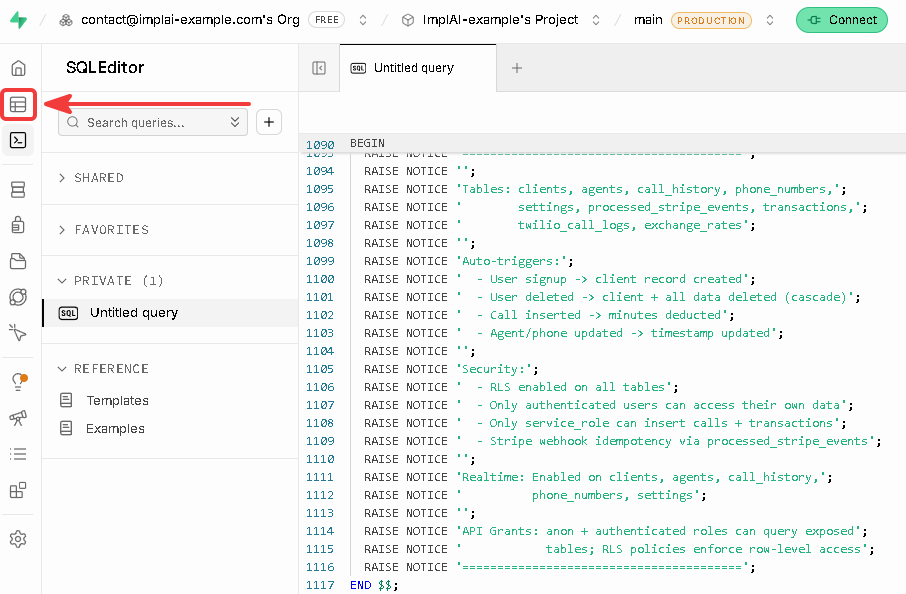
Check your tables
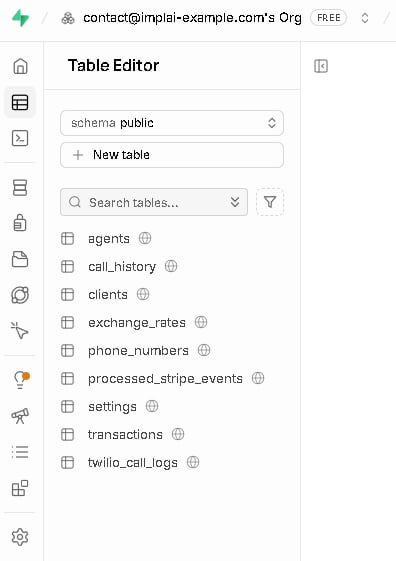
Nine tables means the script ran completely.
Add the welcome email webhook
When a customer confirms their email address, your app sends them a welcome message. For that to happen, the database has to tell your app the moment the confirmation occurs, and that’s what this webhook does.Install the webhooks integration
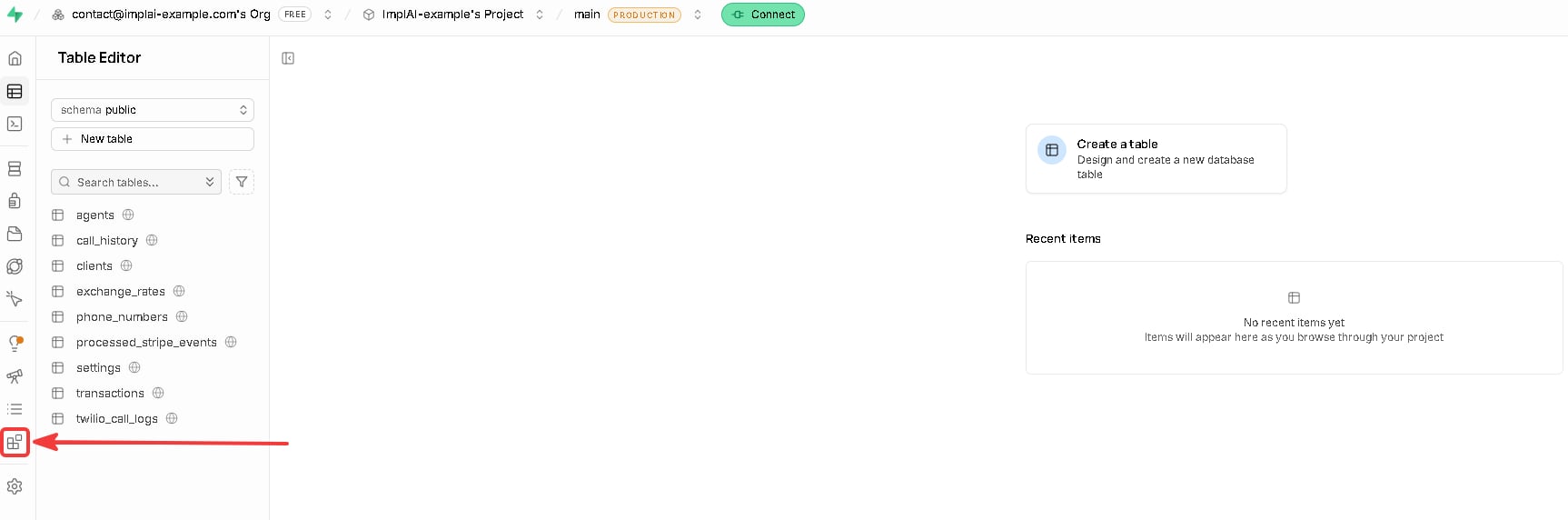
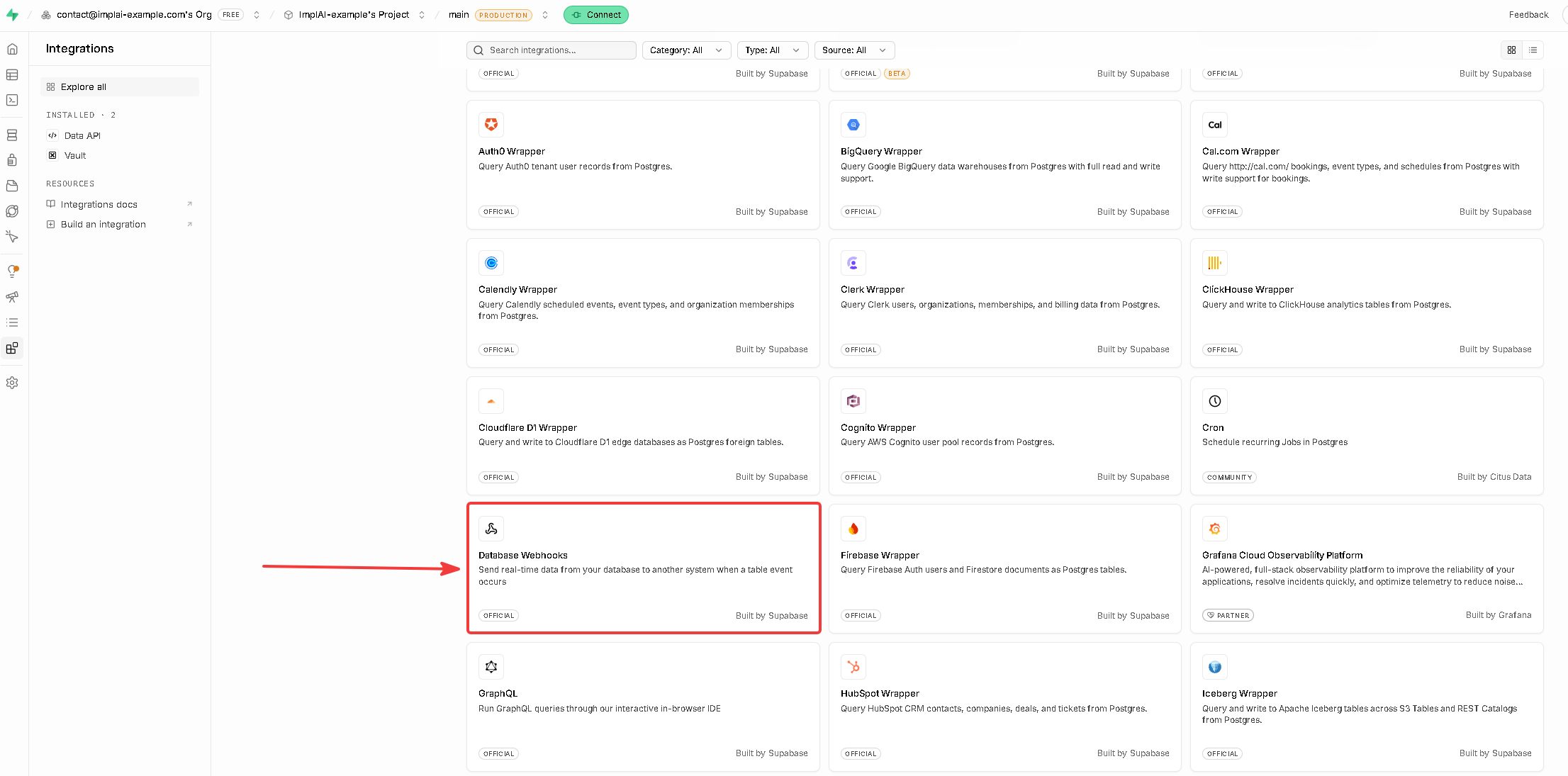
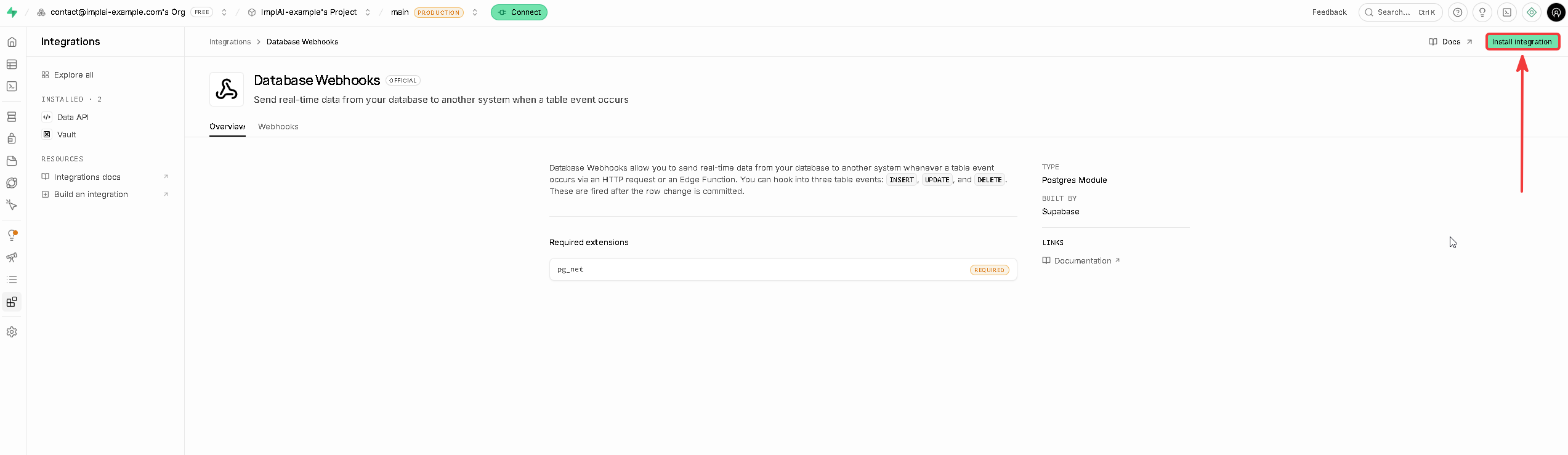
pg_net that lets your database make outbound requests, which is exactly what a webhook needs. There’s nothing to configure, so click Install integration again to confirm.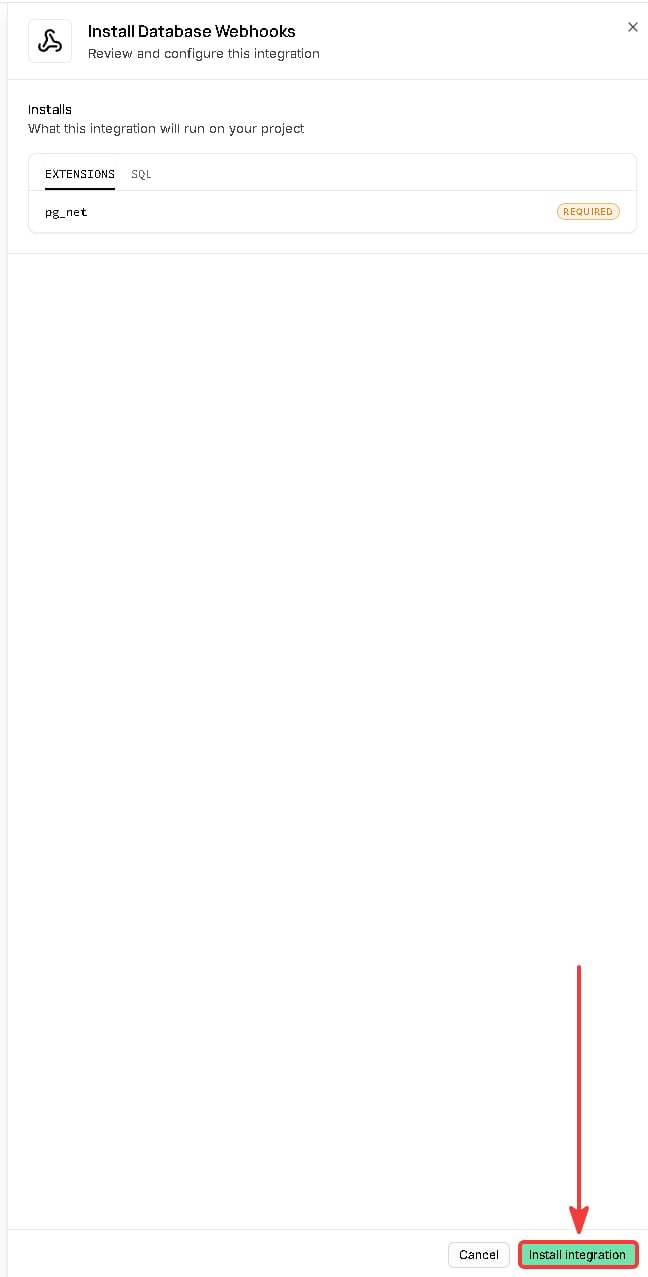
Create the hook
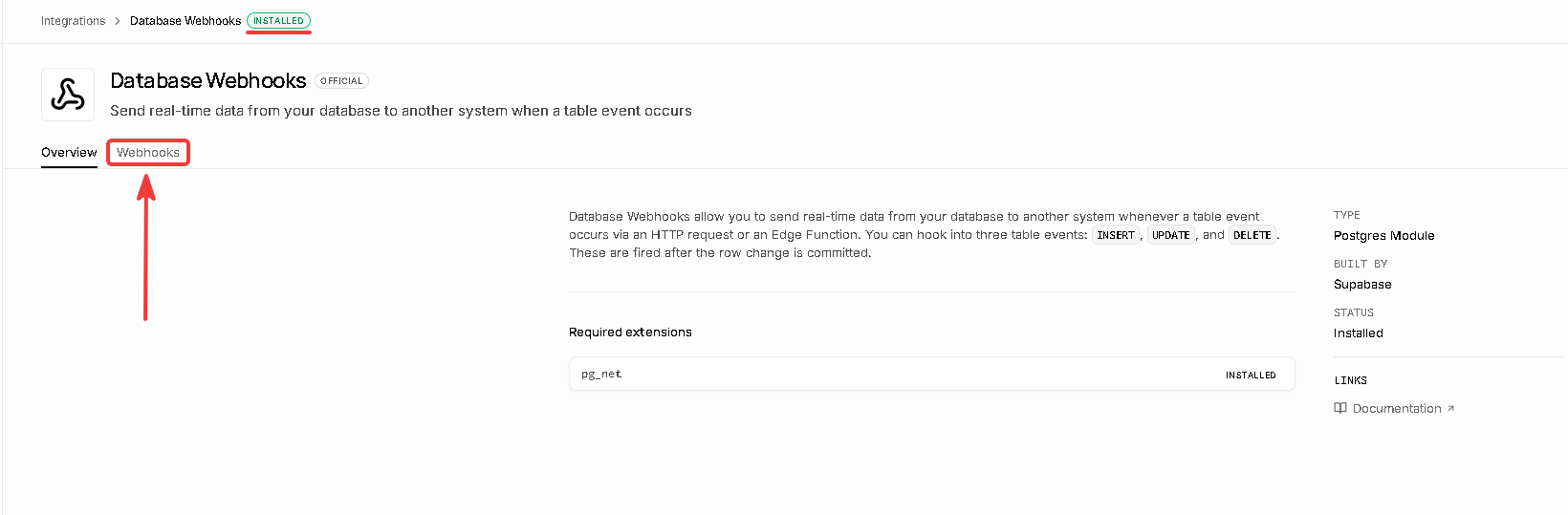
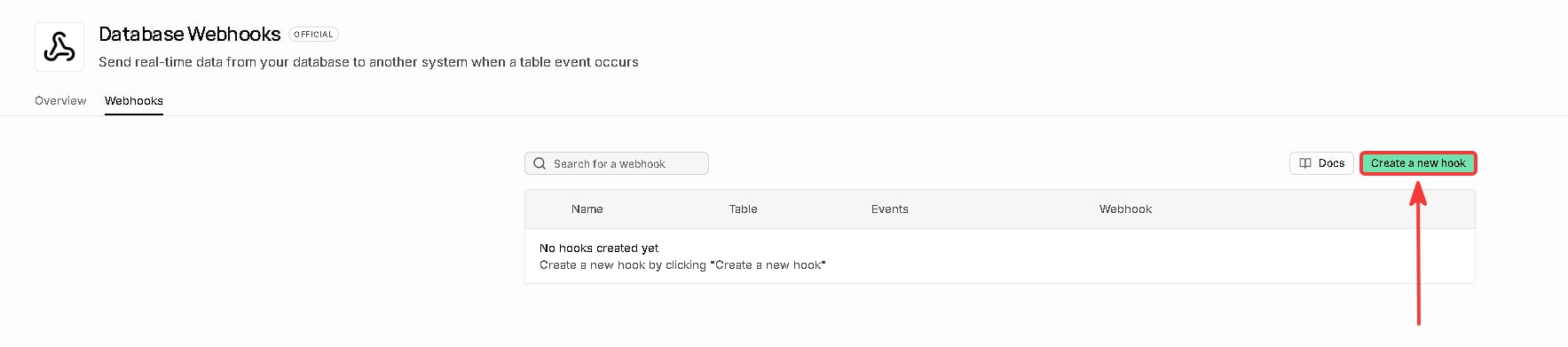
Configure it
- Name:
send-welcome-email - Table:
auth users - Events: check Update only, since confirming an email updates an existing user rather than creating one
- Type: HTTP Request
- Method:
POST - URL:
https://www.yourdomain.com/api/webhooks/supabase-auth, with your own domain - Timeout: leave the default
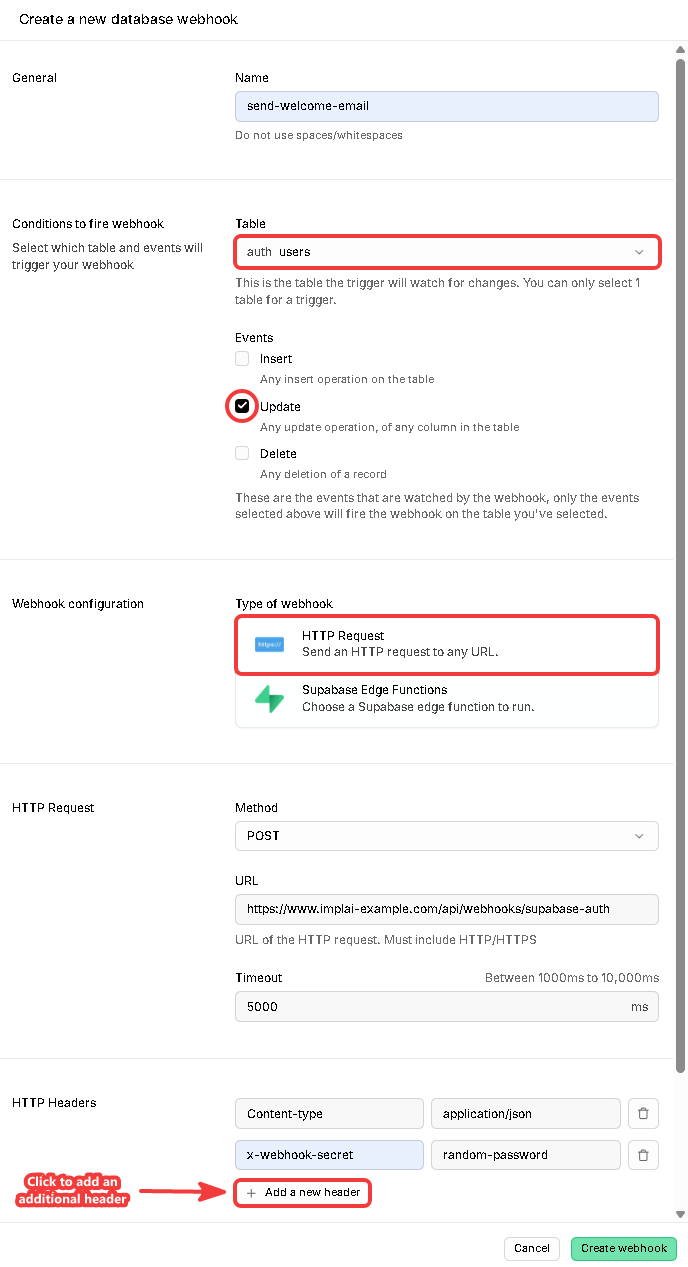
Update is the only event to check. The others would fire at the wrong moments.
Add the shared password
x-webhook-secret and the value to a password you choose.This address is publicly reachable, so without a password anyone who guessed it could tell your app that someone confirmed their account. Your app checks this password on every request and ignores anything that doesn’t match.SUPABASE_WEBHOOK_SECRET in your environment variables and paste this exact password there. The two must match or the webhook is rejected every time.Connect Resend to Supabase
Supabase sends the emails that belong to accounts: confirm your signup, reset your password, your password changed. Out of the box those come from Supabase’s own servers, which means they don’t come from your domain and often land in spam. Connecting Resend fixes that, so those messages arrive from your address exactly like the ones your app sends itself.Open the SMTP settings
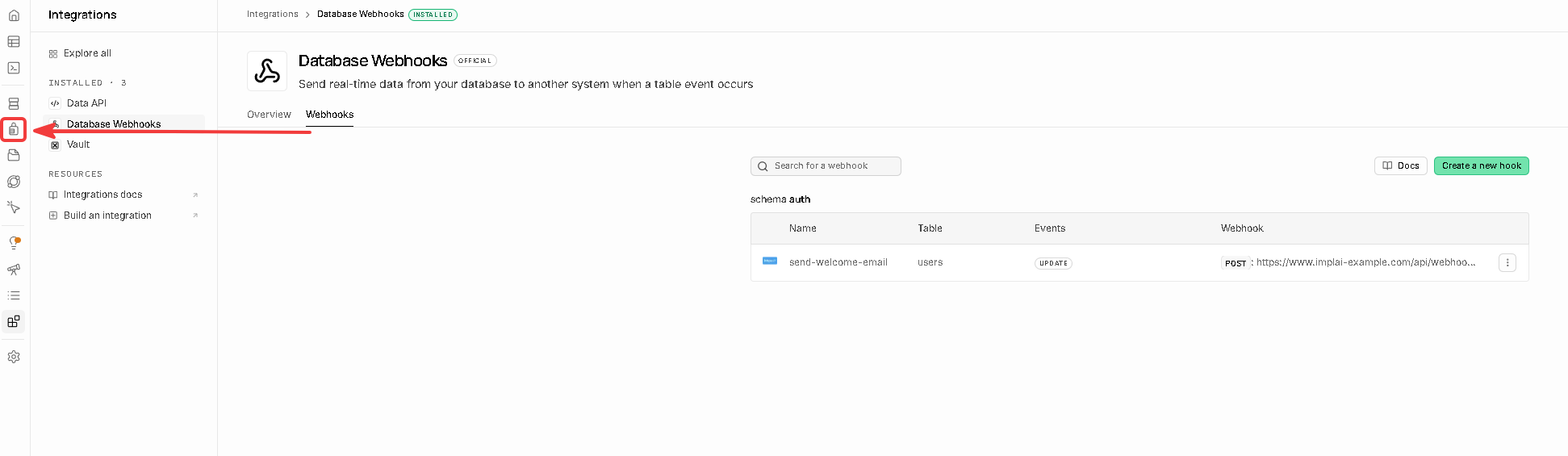
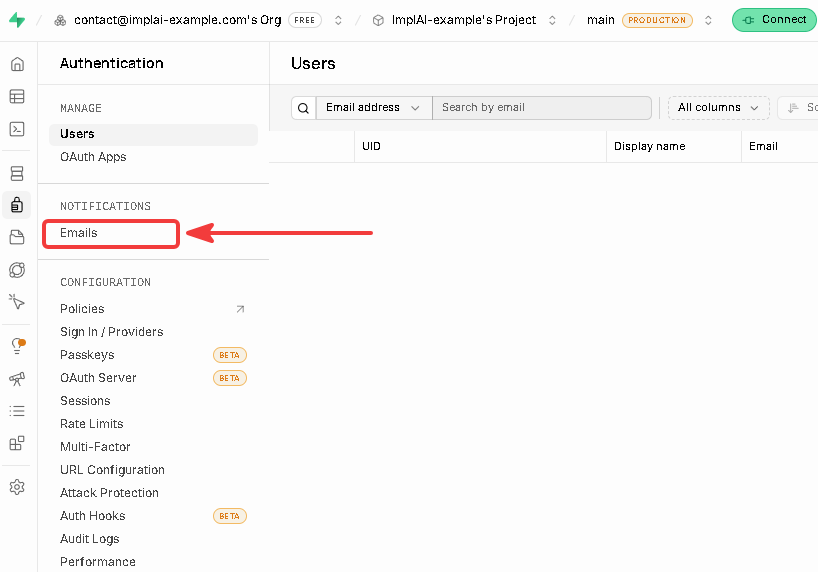
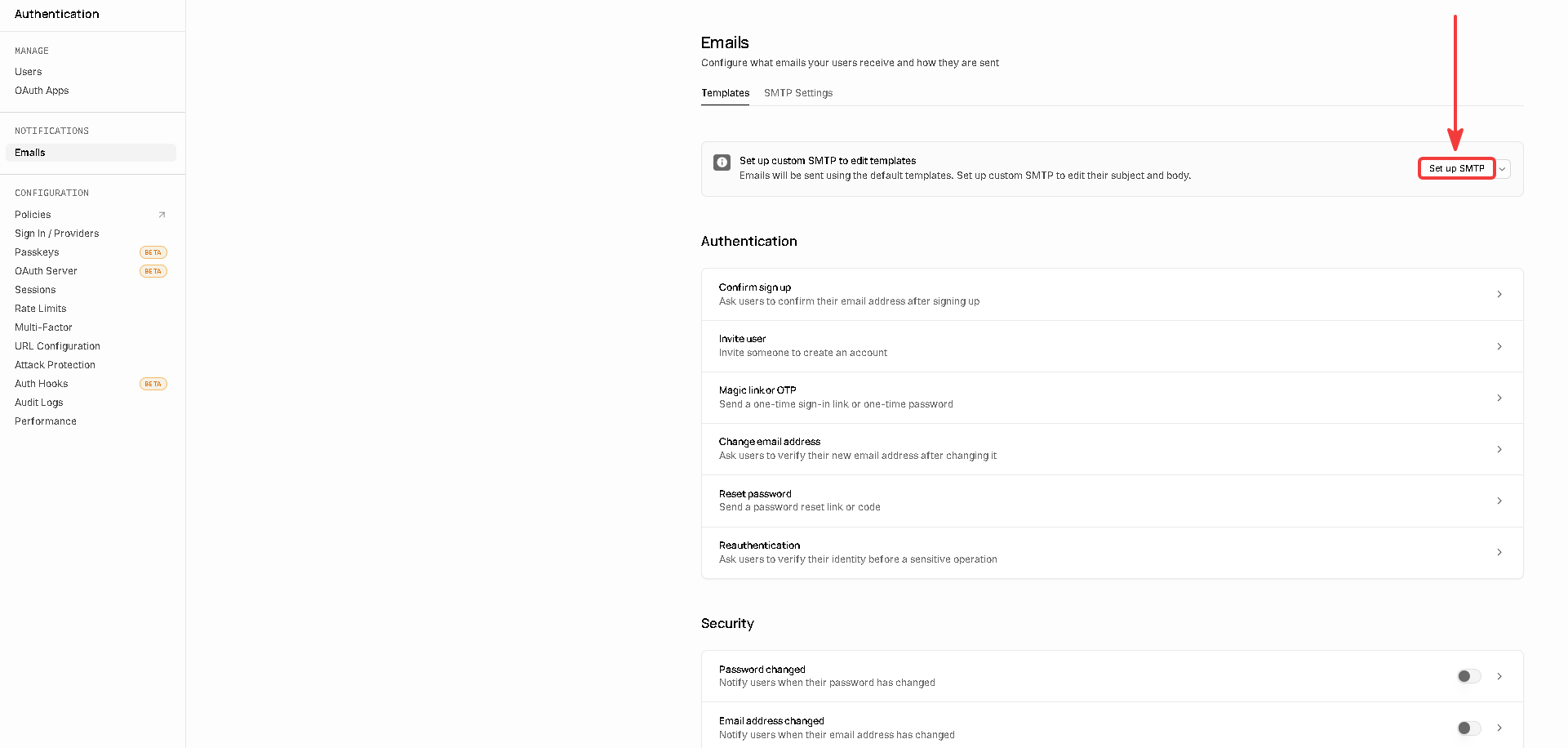
Fill in the connection
- Sender email address: the exact same address you set as
RESEND_FROM_EMAILin Vercel, for examplenoreply@mail.yourdomain.com - Sender name: your brand name, which is what recipients see in their inbox
| Field | Value |
|---|---|
| Host | smtp.resend.com |
| Port number | 465 |
| Minimum interval per user | 60 seconds |
| Username | resend |
RESEND_API_KEY, copy its value, and paste it here.Click Save changes, then click the Templates tab at the top of the page, which is where the next section continues.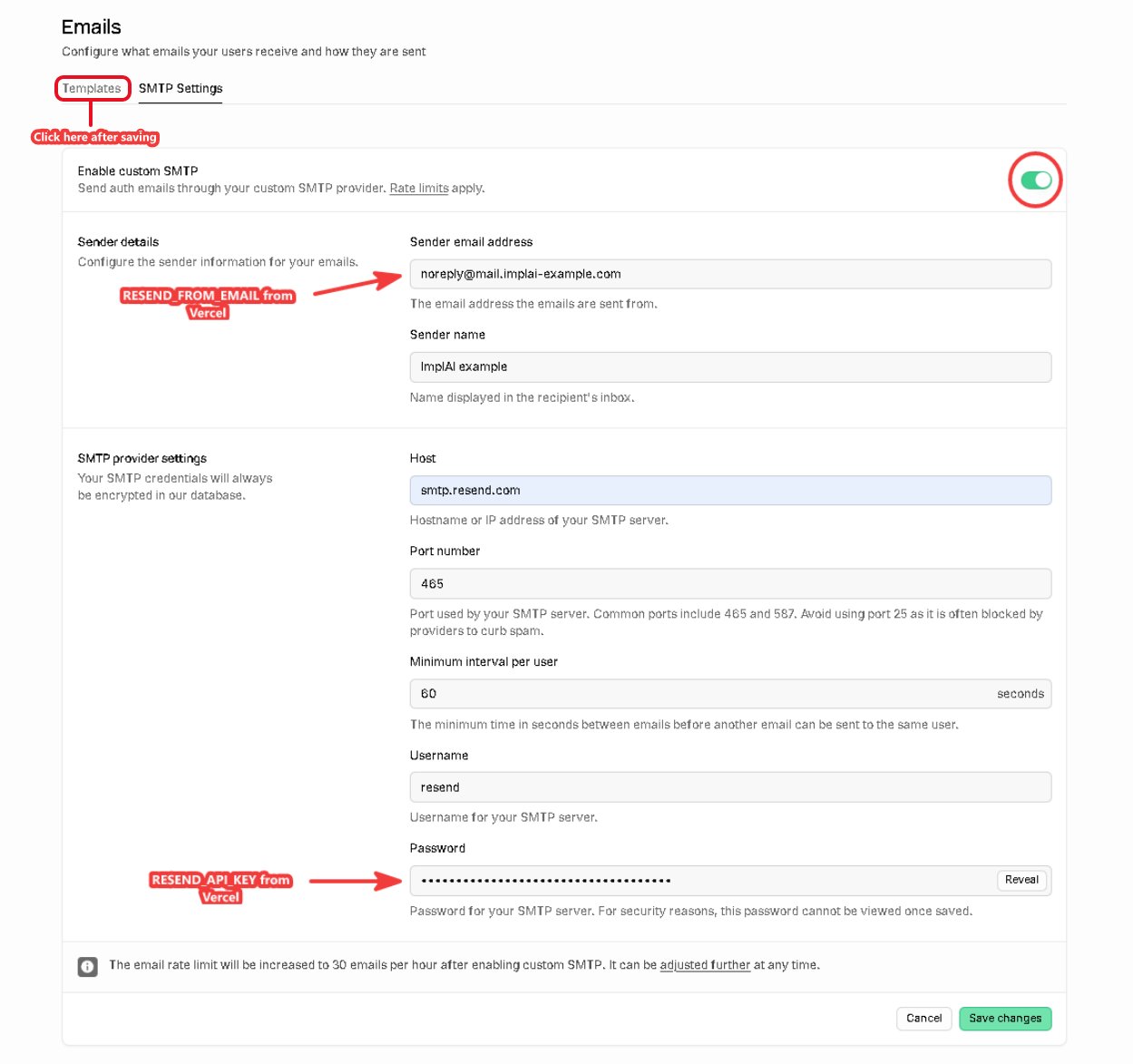
The sender address and the password are both copied from Vercel. Once saved, the Templates tab at the top is where you continue.
Style your account emails
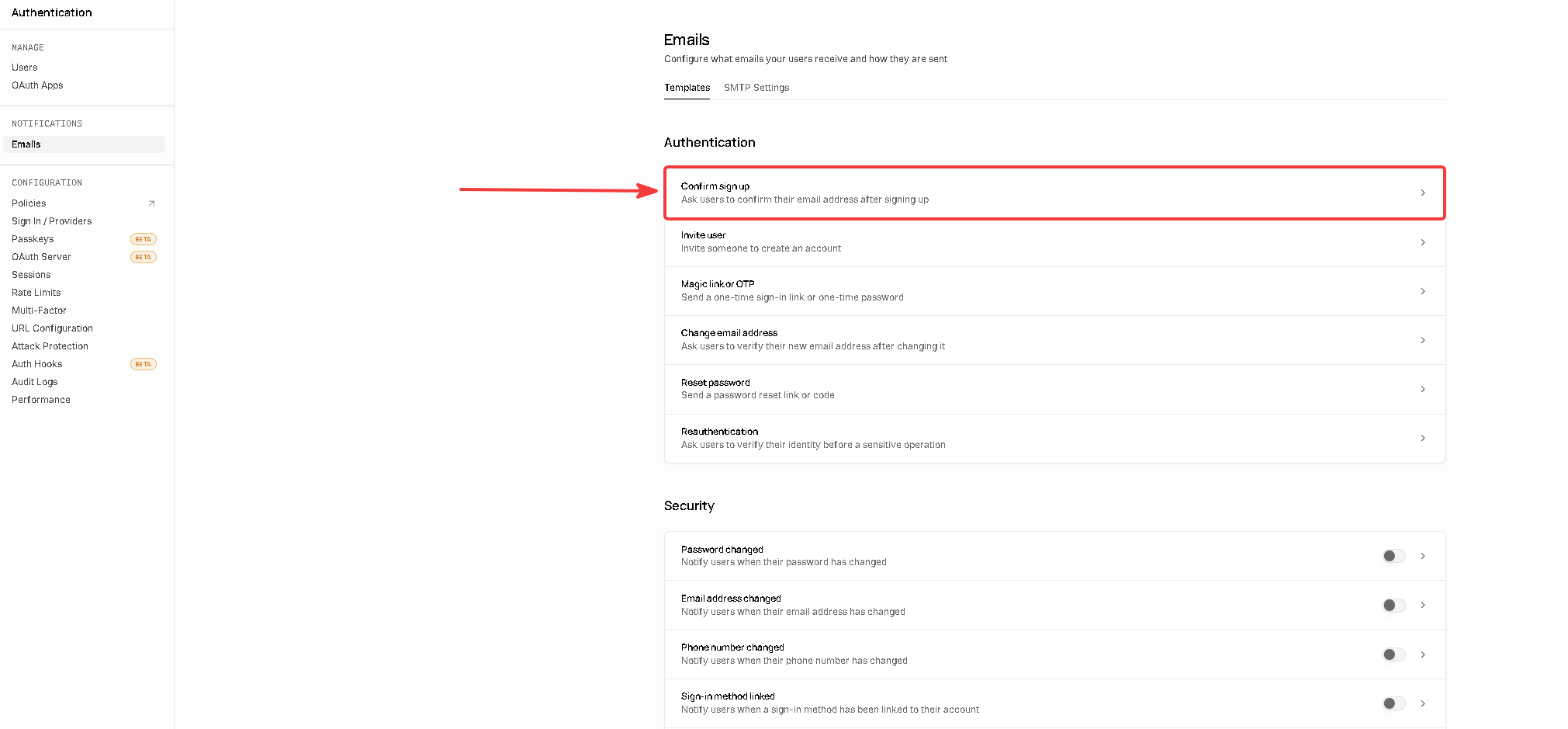
Supabase’s default emails are plain, unstyled and look like system messages, which hurts both trust and deliverability. These three replace them with branded versions.Replace the signup confirmation
<!DOCTYPE html>
<html lang="en" dir="ltr" xmlns:v="urn:schemas-microsoft-com:vml" xmlns:o="urn:schemas-microsoft-com:office:office">
<head>
<meta charset="UTF-8">
<meta http-equiv="X-UA-Compatible" content="IE=edge">
<meta name="viewport" content="width=device-width, initial-scale=1.0">
<meta name="x-apple-disable-message-reformatting">
<meta name="color-scheme" content="light dark">
<meta name="supported-color-schemes" content="light dark">
<title>Confirm your email</title>
<!--[if mso]>
<noscript>
<xml>
<o:OfficeDocumentSettings>
<o:PixelsPerInch>96</o:PixelsPerInch>
</o:OfficeDocumentSettings>
</xml>
</noscript>
<style>
td, th, div, p, a, h1, h2 { font-family: 'Segoe UI', Arial, sans-serif !important; }
</style>
<![endif]-->
<style>
@media (prefers-color-scheme: dark) {
.body-bg { background-color: #09090b !important; }
.card { background-color: #18181b !important; border-color: #27272a !important; }
.heading { color: #fafafa !important; }
.text { color: #a1a1aa !important; }
.btn { background-color: #fafafa !important; color: #18181b !important; }
.link { color: #fafafa !important; }
.divider { border-color: #27272a !important; }
}
@media only screen and (max-width: 520px) {
.card-padding { padding: 32px 24px !important; }
}
</style>
</head>
<body class="body-bg" style="margin: 0; padding: 0; font-family: -apple-system, BlinkMacSystemFont, 'Segoe UI', Roboto, 'Helvetica Neue', Arial, sans-serif; background-color: #fafafa; color: #09090b; -webkit-font-smoothing: antialiased; -moz-osx-font-smoothing: grayscale;">
<!-- Preheader (preview text in inbox) -->
<div style="display: none; max-height: 0; overflow: hidden; font-size: 1px; line-height: 1px; color: #fafafa; opacity: 0;">
Click the button to verify your email address and activate your account.
</div>
<table role="presentation" cellpadding="0" cellspacing="0" border="0" class="body-bg" style="width: 100%; background-color: #fafafa;">
<tr>
<td align="center" style="padding: 48px 16px;">
<table role="presentation" cellpadding="0" cellspacing="0" border="0" class="card" style="max-width: 480px; width: 100%; background-color: #ffffff; border: 1px solid #e4e4e7; border-radius: 8px;">
<tr>
<td class="card-padding" style="padding: 40px 40px 32px 40px;">
<h1 class="heading" style="margin: 0 0 12px 0; color: #09090b; font-size: 22px; font-weight: 600; line-height: 1.3; letter-spacing: -0.4px;">
Confirm your email
</h1>
<p class="text" style="margin: 0 0 32px 0; color: #71717a; font-size: 15px; line-height: 1.6;">
Click the button below to verify your email address and activate your account.
</p>
<!-- CTA Button (with mso fallback) -->
<table role="presentation" cellpadding="0" cellspacing="0" border="0" style="margin: 0 0 32px 0;">
<tr>
<td>
<!--[if mso]>
<v:roundrect xmlns:v="urn:schemas-microsoft-com:vml" xmlns:w="urn:schemas-microsoft-com:office:word" href="{{ .ConfirmationURL }}" style="height:40px;v-text-anchor:middle;width:140px;" arcsize="15%" stroke="f" fillcolor="#18181b">
<w:anchorlock/>
<center style="color:#fafafa;font-family:'Segoe UI',Arial,sans-serif;font-size:14px;font-weight:500;">Confirm email</center>
</v:roundrect>
<![endif]-->
<!--[if !mso]><!-- -->
<a href="{{ .ConfirmationURL }}" class="btn"
style="display: inline-block; padding: 11px 20px; background-color: #18181b; color: #fafafa; text-decoration: none; border-radius: 6px; font-weight: 500; font-size: 14px; line-height: 1;">
Confirm email
</a>
<!--<![endif]-->
</td>
</tr>
</table>
<!-- Divider -->
<table role="presentation" cellpadding="0" cellspacing="0" border="0" style="width: 100%; margin: 0 0 24px 0;">
<tr>
<td class="divider" style="border-top: 1px solid #e4e4e7; height: 1px; line-height: 1px; font-size: 0;"> </td>
</tr>
</table>
<!-- Security Notice -->
<p class="text" style="margin: 0; color: #71717a; font-size: 13px; line-height: 1.6;">
This link expires in 1 hour. If you didn't request this email, you can safely ignore it.
</p>
</td>
</tr>
</table>
</td>
</tr>
</table>
</body>
</html>
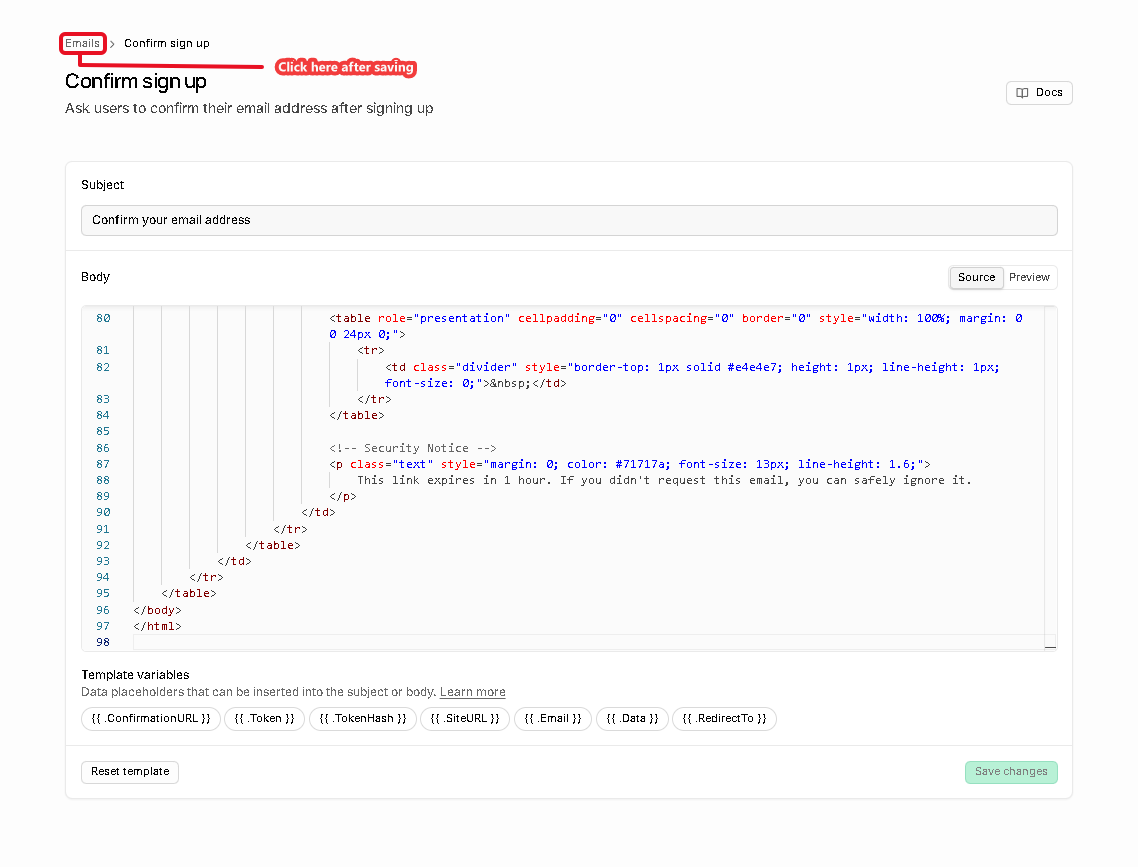
You can use the preview in the top right of the editor to see how it looks.
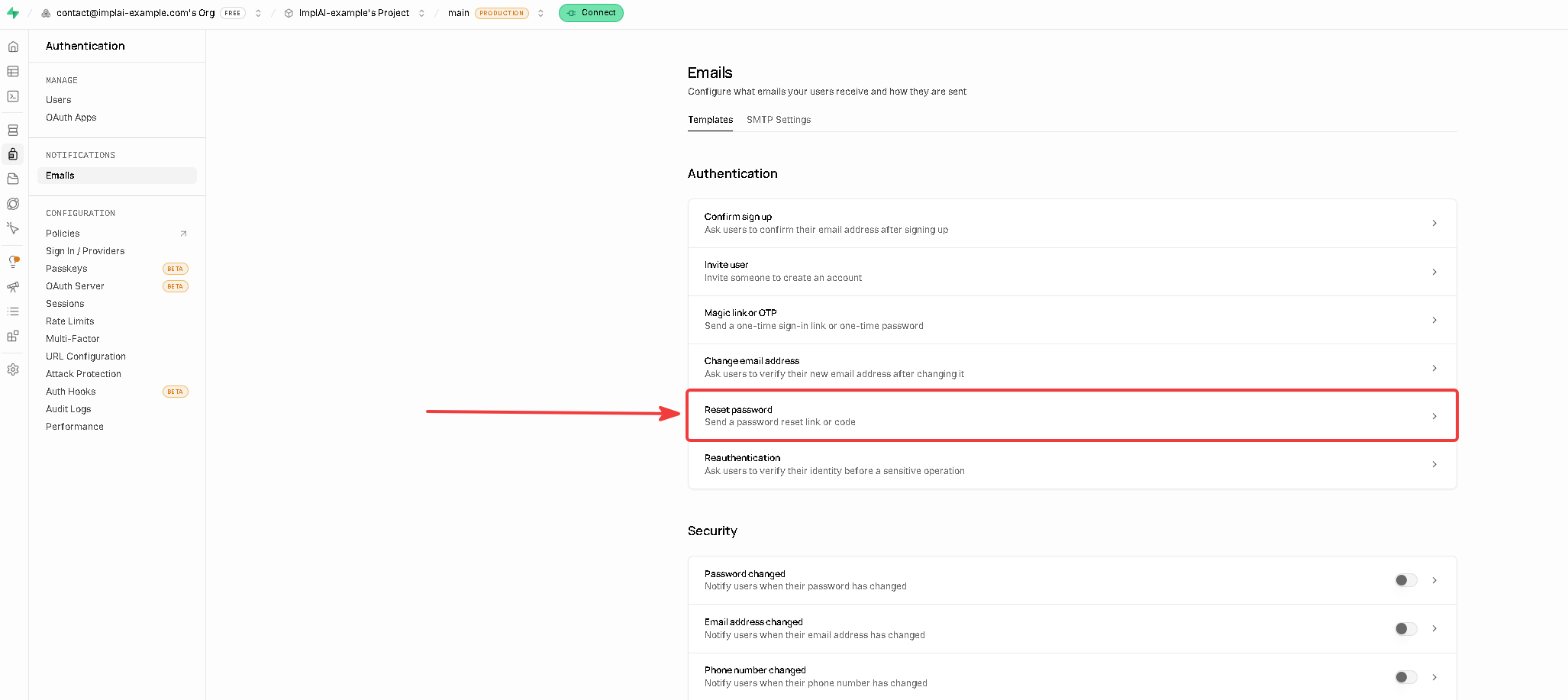
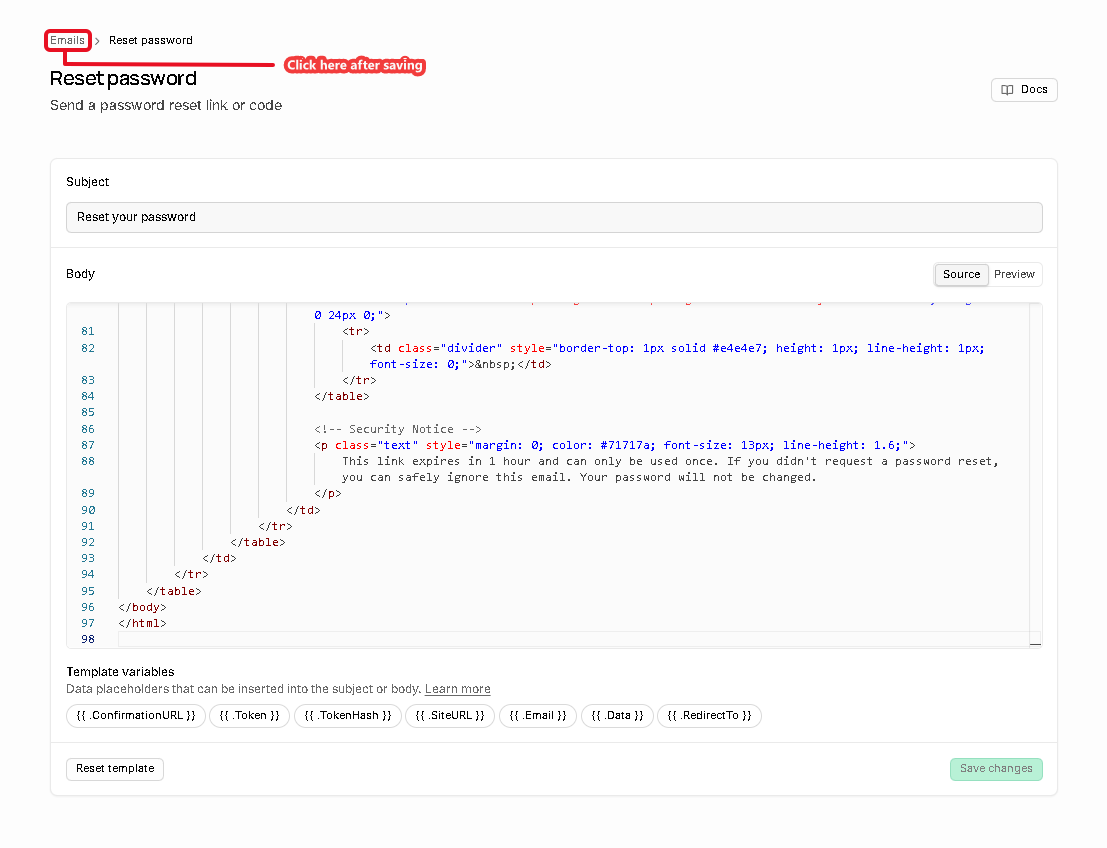
Replace the password reset
<!DOCTYPE html>
<html lang="en" dir="ltr" xmlns:v="urn:schemas-microsoft-com:vml" xmlns:o="urn:schemas-microsoft-com:office:office">
<head>
<meta charset="UTF-8">
<meta http-equiv="X-UA-Compatible" content="IE=edge">
<meta name="viewport" content="width=device-width, initial-scale=1.0">
<meta name="x-apple-disable-message-reformatting">
<meta name="color-scheme" content="light dark">
<meta name="supported-color-schemes" content="light dark">
<title>Reset your password</title>
<!--[if mso]>
<noscript>
<xml>
<o:OfficeDocumentSettings>
<o:PixelsPerInch>96</o:PixelsPerInch>
</o:OfficeDocumentSettings>
</xml>
</noscript>
<style>
td, th, div, p, a, h1, h2 { font-family: 'Segoe UI', Arial, sans-serif !important; }
</style>
<![endif]-->
<style>
@media (prefers-color-scheme: dark) {
.body-bg { background-color: #09090b !important; }
.card { background-color: #18181b !important; border-color: #27272a !important; }
.heading { color: #fafafa !important; }
.text { color: #a1a1aa !important; }
.btn { background-color: #fafafa !important; color: #18181b !important; }
.link { color: #fafafa !important; }
.divider { border-color: #27272a !important; }
}
@media only screen and (max-width: 520px) {
.card-padding { padding: 32px 24px !important; }
}
</style>
</head>
<body class="body-bg" style="margin: 0; padding: 0; font-family: -apple-system, BlinkMacSystemFont, 'Segoe UI', Roboto, 'Helvetica Neue', Arial, sans-serif; background-color: #fafafa; color: #09090b; -webkit-font-smoothing: antialiased; -moz-osx-font-smoothing: grayscale;">
<!-- Preheader (preview text in inbox) -->
<div style="display: none; max-height: 0; overflow: hidden; font-size: 1px; line-height: 1px; color: #fafafa; opacity: 0;">
Click the button to choose a new password for your account.
</div>
<table role="presentation" cellpadding="0" cellspacing="0" border="0" class="body-bg" style="width: 100%; background-color: #fafafa;">
<tr>
<td align="center" style="padding: 48px 16px;">
<table role="presentation" cellpadding="0" cellspacing="0" border="0" class="card" style="max-width: 480px; width: 100%; background-color: #ffffff; border: 1px solid #e4e4e7; border-radius: 8px;">
<tr>
<td class="card-padding" style="padding: 40px 40px 32px 40px;">
<h1 class="heading" style="margin: 0 0 12px 0; color: #09090b; font-size: 22px; font-weight: 600; line-height: 1.3; letter-spacing: -0.4px;">
Reset your password
</h1>
<p class="text" style="margin: 0 0 32px 0; color: #71717a; font-size: 15px; line-height: 1.6;">
Click the button below to choose a new password for your account.
</p>
<!-- CTA Button (with mso fallback) -->
<table role="presentation" cellpadding="0" cellspacing="0" border="0" style="margin: 0 0 32px 0;">
<tr>
<td>
<!--[if mso]>
<v:roundrect xmlns:v="urn:schemas-microsoft-com:vml" xmlns:w="urn:schemas-microsoft-com:office:word" href="{{ .ConfirmationURL }}" style="height:40px;v-text-anchor:middle;width:150px;" arcsize="15%" stroke="f" fillcolor="#18181b">
<w:anchorlock/>
<center style="color:#fafafa;font-family:'Segoe UI',Arial,sans-serif;font-size:14px;font-weight:500;">Reset password</center>
</v:roundrect>
<![endif]-->
<!--[if !mso]><!-- -->
<a href="{{ .ConfirmationURL }}" class="btn"
style="display: inline-block; padding: 11px 20px; background-color: #18181b; color: #fafafa; text-decoration: none; border-radius: 6px; font-weight: 500; font-size: 14px; line-height: 1;">
Reset password
</a>
<!--<![endif]-->
</td>
</tr>
</table>
<!-- Divider -->
<table role="presentation" cellpadding="0" cellspacing="0" border="0" style="width: 100%; margin: 0 0 24px 0;">
<tr>
<td class="divider" style="border-top: 1px solid #e4e4e7; height: 1px; line-height: 1px; font-size: 0;"> </td>
</tr>
</table>
<!-- Security Notice -->
<p class="text" style="margin: 0; color: #71717a; font-size: 13px; line-height: 1.6;">
This link expires in 1 hour and can only be used once. If you didn't request a password reset, you can safely ignore this email. Your password will not be changed.
</p>
</td>
</tr>
</table>
</td>
</tr>
</table>
</body>
</html>
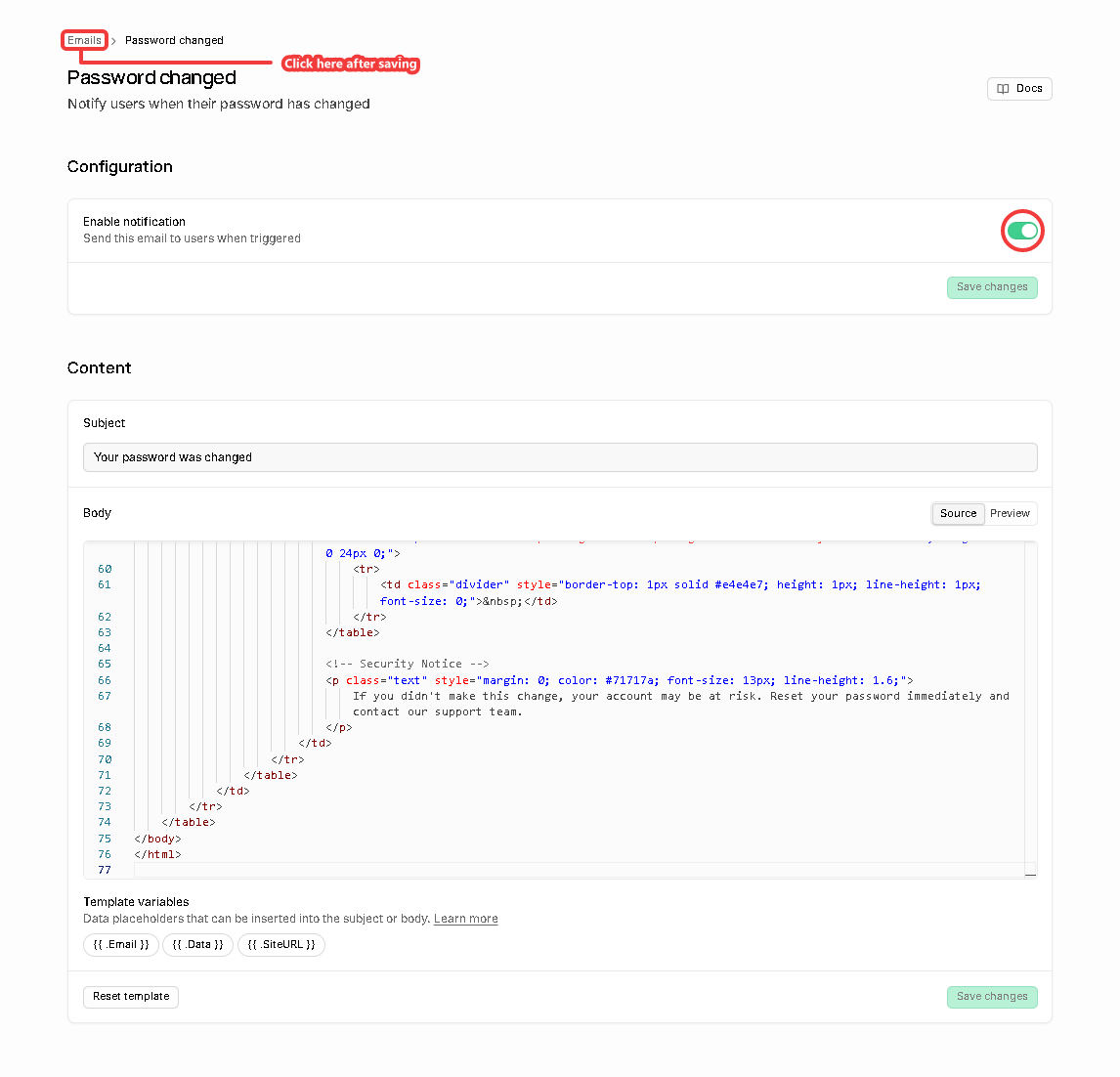
Enable and replace the password change notice
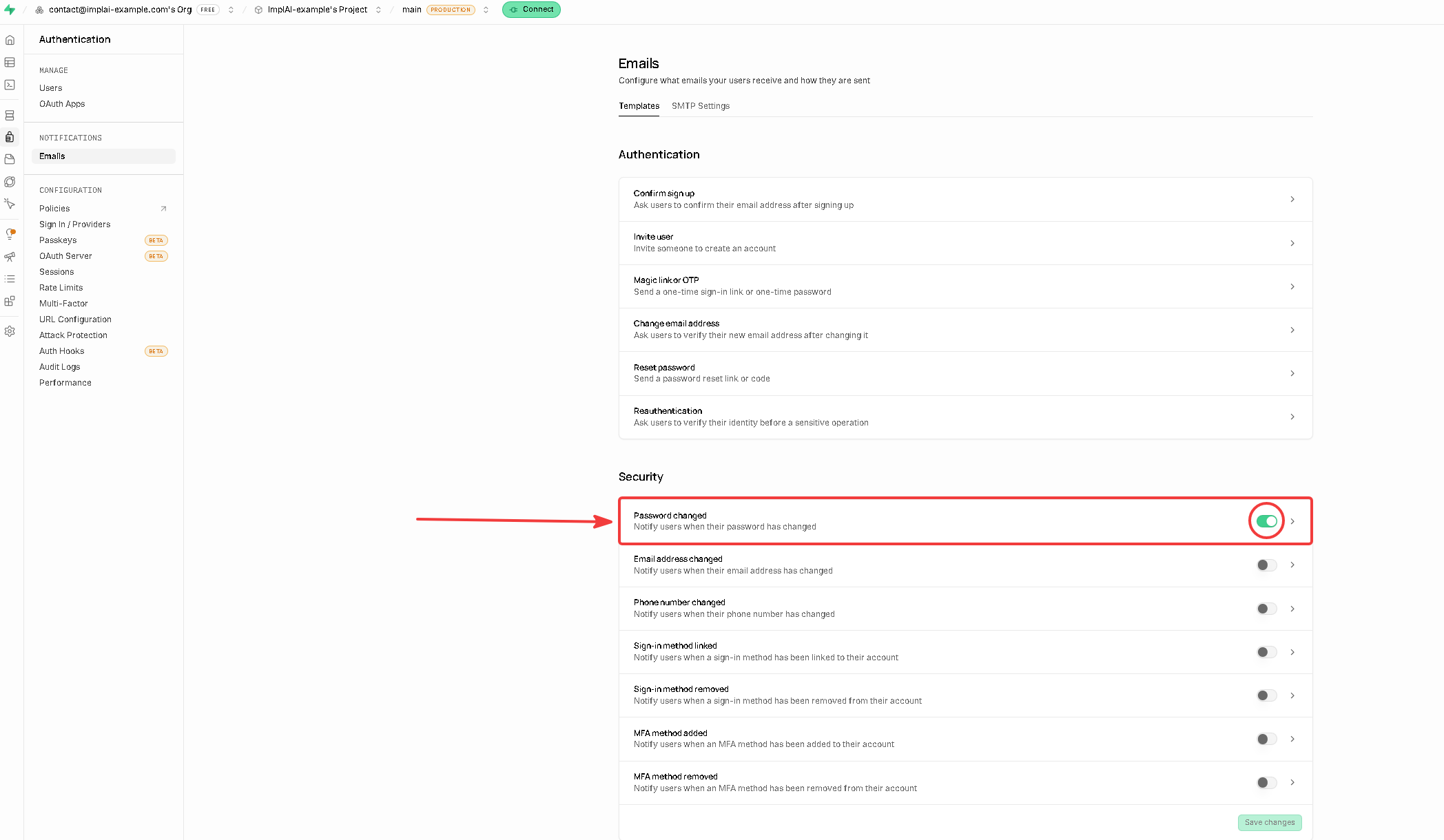
This template has to be enabled before you can edit it.
<!DOCTYPE html>
<html lang="en" dir="ltr" xmlns:v="urn:schemas-microsoft-com:vml" xmlns:o="urn:schemas-microsoft-com:office:office">
<head>
<meta charset="UTF-8">
<meta http-equiv="X-UA-Compatible" content="IE=edge">
<meta name="viewport" content="width=device-width, initial-scale=1.0">
<meta name="x-apple-disable-message-reformatting">
<meta name="color-scheme" content="light dark">
<meta name="supported-color-schemes" content="light dark">
<title>Your password was changed</title>
<!--[if mso]>
<noscript>
<xml>
<o:OfficeDocumentSettings>
<o:PixelsPerInch>96</o:PixelsPerInch>
</o:OfficeDocumentSettings>
</xml>
</noscript>
<style>
td, th, div, p, a, h1, h2 { font-family: 'Segoe UI', Arial, sans-serif !important; }
</style>
<![endif]-->
<style>
@media (prefers-color-scheme: dark) {
.body-bg { background-color: #09090b !important; }
.card { background-color: #18181b !important; border-color: #27272a !important; }
.heading { color: #fafafa !important; }
.text { color: #a1a1aa !important; }
.strong { color: #fafafa !important; }
.divider { border-color: #27272a !important; }
}
@media only screen and (max-width: 520px) {
.card-padding { padding: 32px 24px !important; }
}
</style>
</head>
<body class="body-bg" style="margin: 0; padding: 0; font-family: -apple-system, BlinkMacSystemFont, 'Segoe UI', Roboto, 'Helvetica Neue', Arial, sans-serif; background-color: #fafafa; color: #09090b; -webkit-font-smoothing: antialiased; -moz-osx-font-smoothing: grayscale;">
<!-- Preheader (preview text in inbox) -->
<div style="display: none; max-height: 0; overflow: hidden; font-size: 1px; line-height: 1px; color: #fafafa; opacity: 0;">
Your account password was just changed. If this wasn't you, contact us right away.
</div>
<table role="presentation" cellpadding="0" cellspacing="0" border="0" class="body-bg" style="width: 100%; background-color: #fafafa;">
<tr>
<td align="center" style="padding: 48px 16px;">
<table role="presentation" cellpadding="0" cellspacing="0" border="0" class="card" style="max-width: 480px; width: 100%; background-color: #ffffff; border: 1px solid #e4e4e7; border-radius: 8px;">
<tr>
<td class="card-padding" style="padding: 40px 40px 32px 40px;">
<h1 class="heading" style="margin: 0 0 12px 0; color: #09090b; font-size: 22px; font-weight: 600; line-height: 1.3; letter-spacing: -0.4px;">
Your password was changed
</h1>
<p class="text" style="margin: 0 0 24px 0; color: #71717a; font-size: 15px; line-height: 1.6;">
The password for your account <span class="strong" style="color: #09090b; font-weight: 500;">{{ .Email }}</span> was just updated. You can now sign in using your new password.
</p>
<!-- Divider -->
<table role="presentation" cellpadding="0" cellspacing="0" border="0" style="width: 100%; margin: 0 0 24px 0;">
<tr>
<td class="divider" style="border-top: 1px solid #e4e4e7; height: 1px; line-height: 1px; font-size: 0;"> </td>
</tr>
</table>
<!-- Security Notice -->
<p class="text" style="margin: 0; color: #71717a; font-size: 13px; line-height: 1.6;">
If you didn't make this change, your account may be at risk. Reset your password immediately and contact our support team.
</p>
</td>
</tr>
</table>
</td>
</tr>
</table>
</body>
</html>
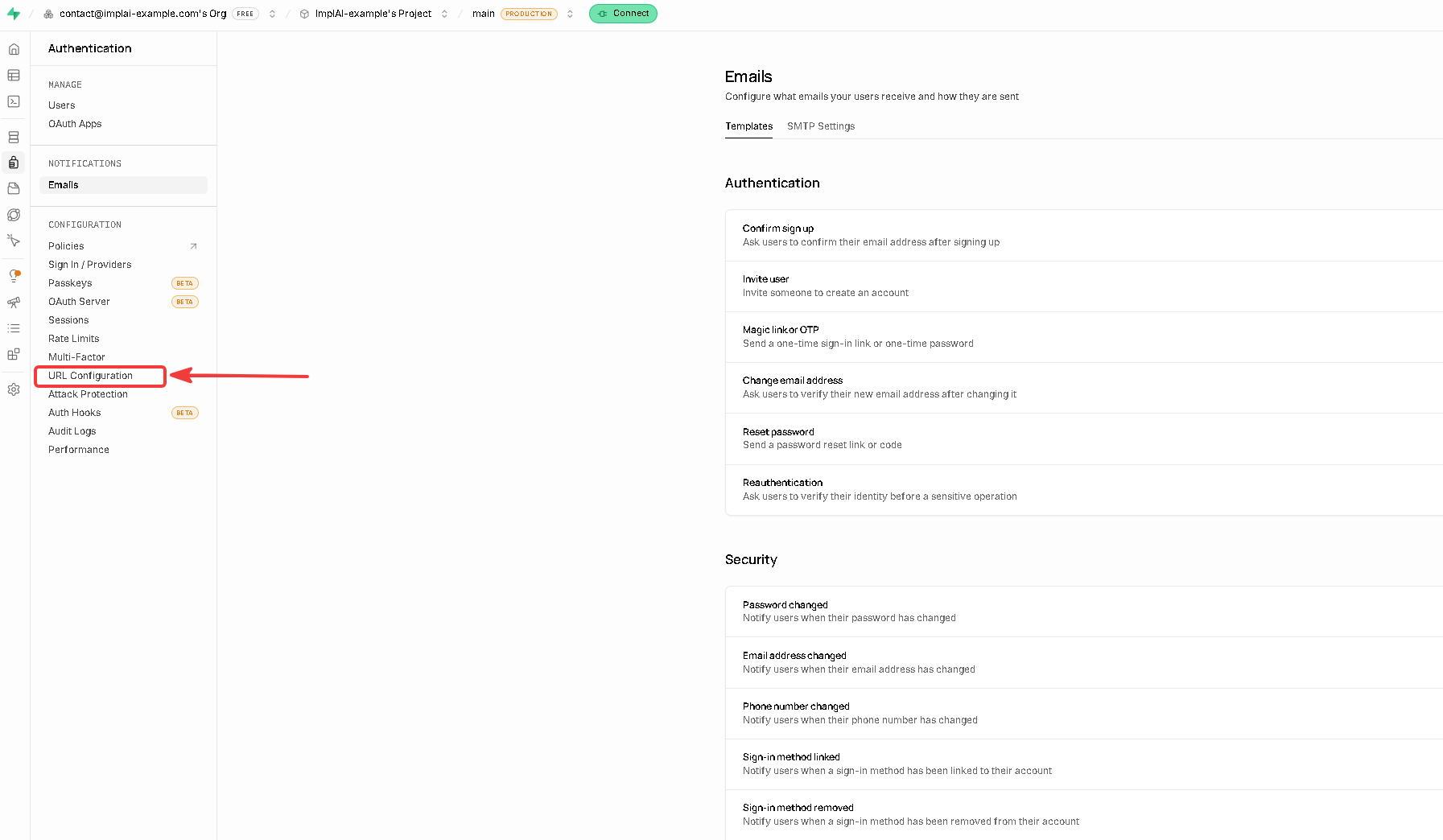
Point the email links at your app
The links inside those emails need to lead somewhere. By default Supabase points them atlocalhost:3000, a developer address, so without this step every confirmation link your customers click would land on a broken page.
Open URL Configuration
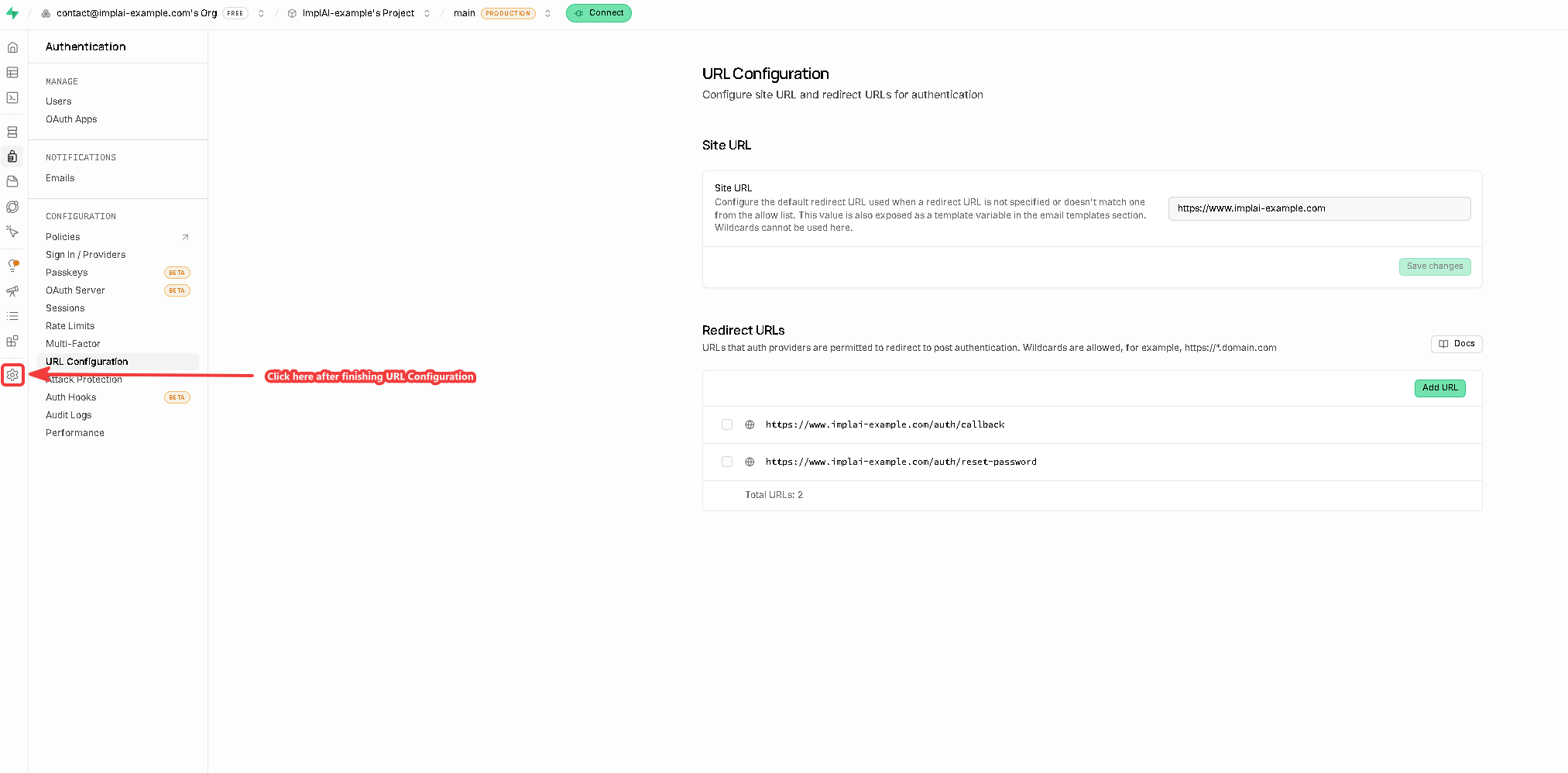
Set your addresses
www:https://www.yourdomain.com
https://www.yourdomain.com/auth/callback
https://www.yourdomain.com/auth/reset-password
Connect it to your app
Three values connect your app to this database.Copy your API keys
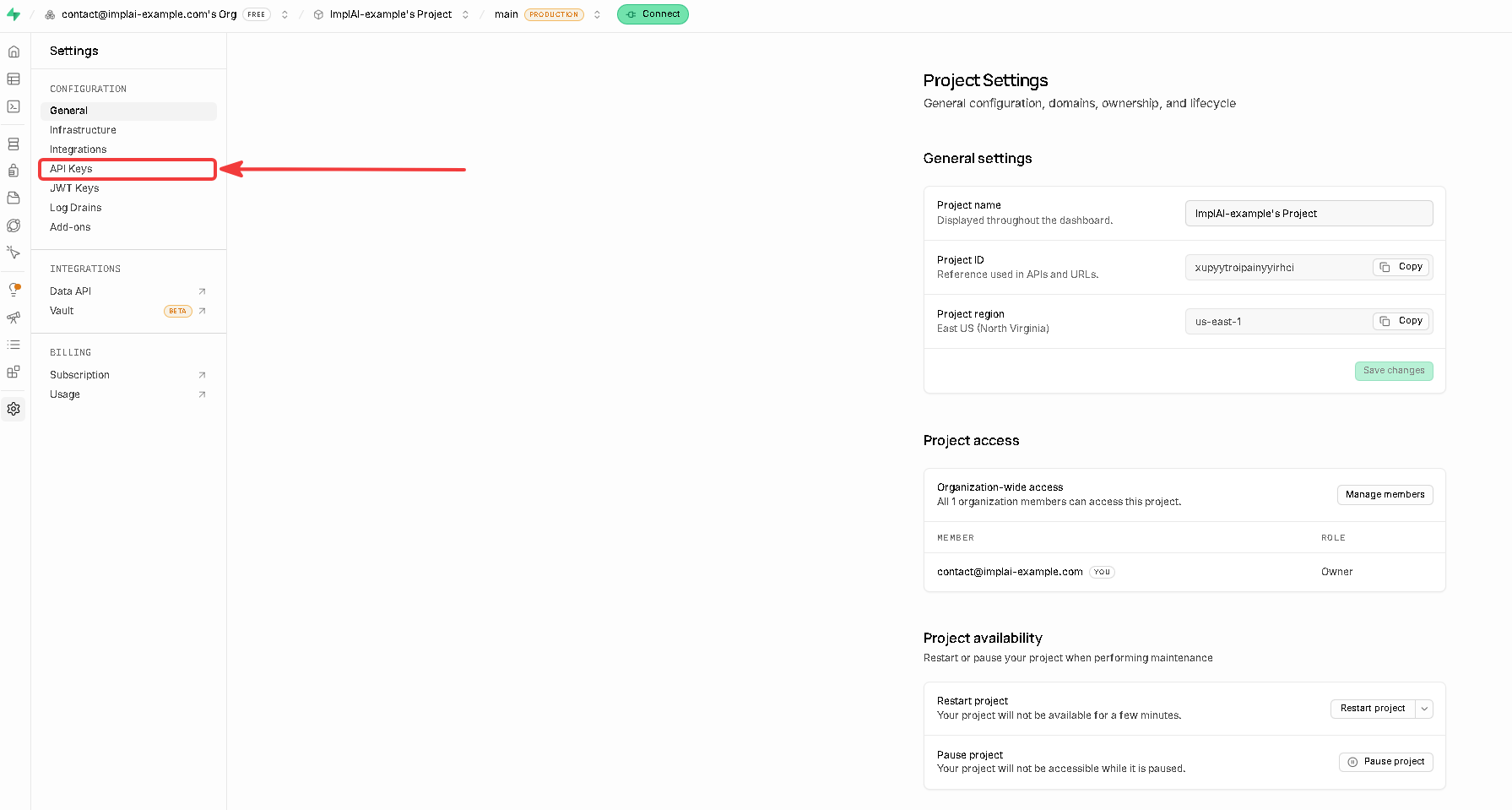
NEXT_PUBLIC_SUPABASE_ANON_KEY in Vercel, and the Secret key into SUPABASE_SERVICE_ROLE_KEY.anon and service_role, which were Supabase’s older names for these same two keys. The Publishable key replaces the anon key, and the Secret key replaces the service role key, so they go in those exact variables.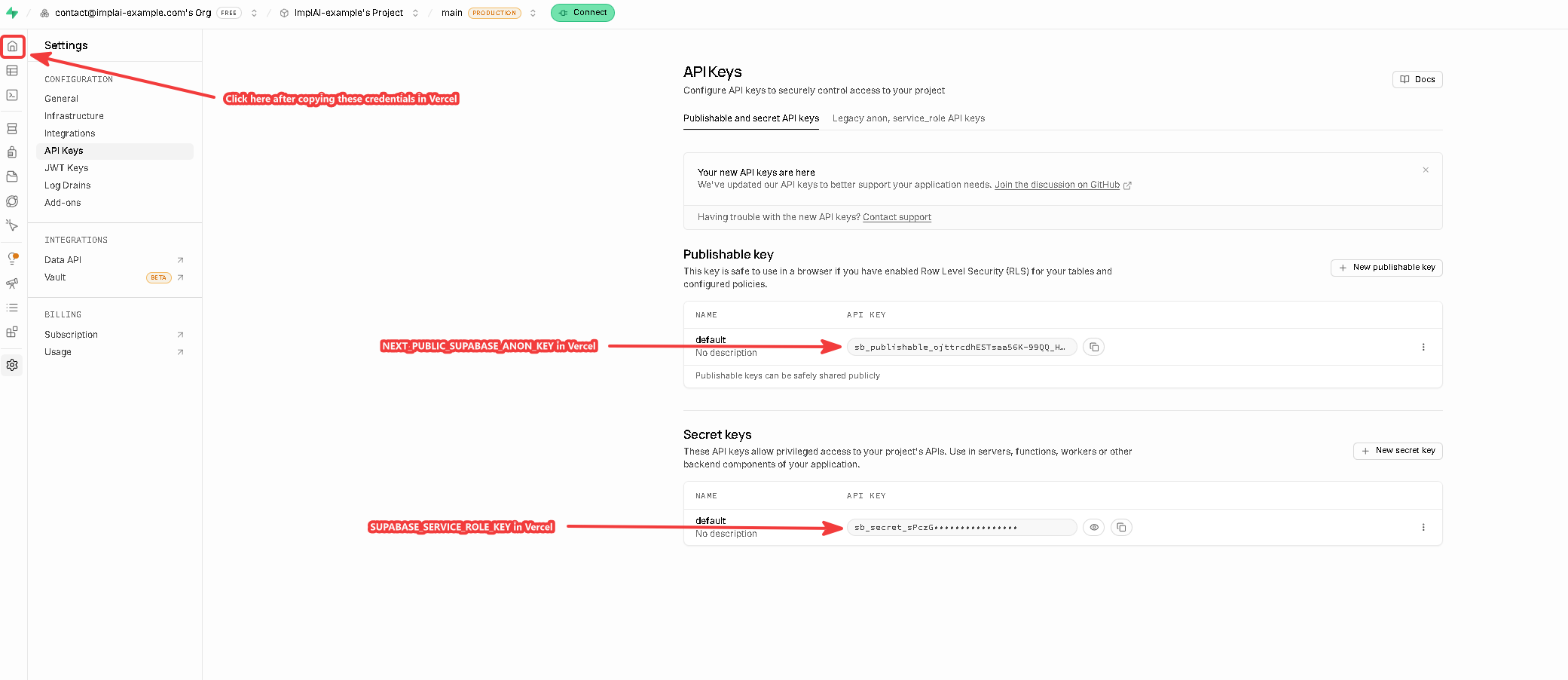
The publishable key is safe in a browser. The secret key never leaves Vercel.
Copy your project URL
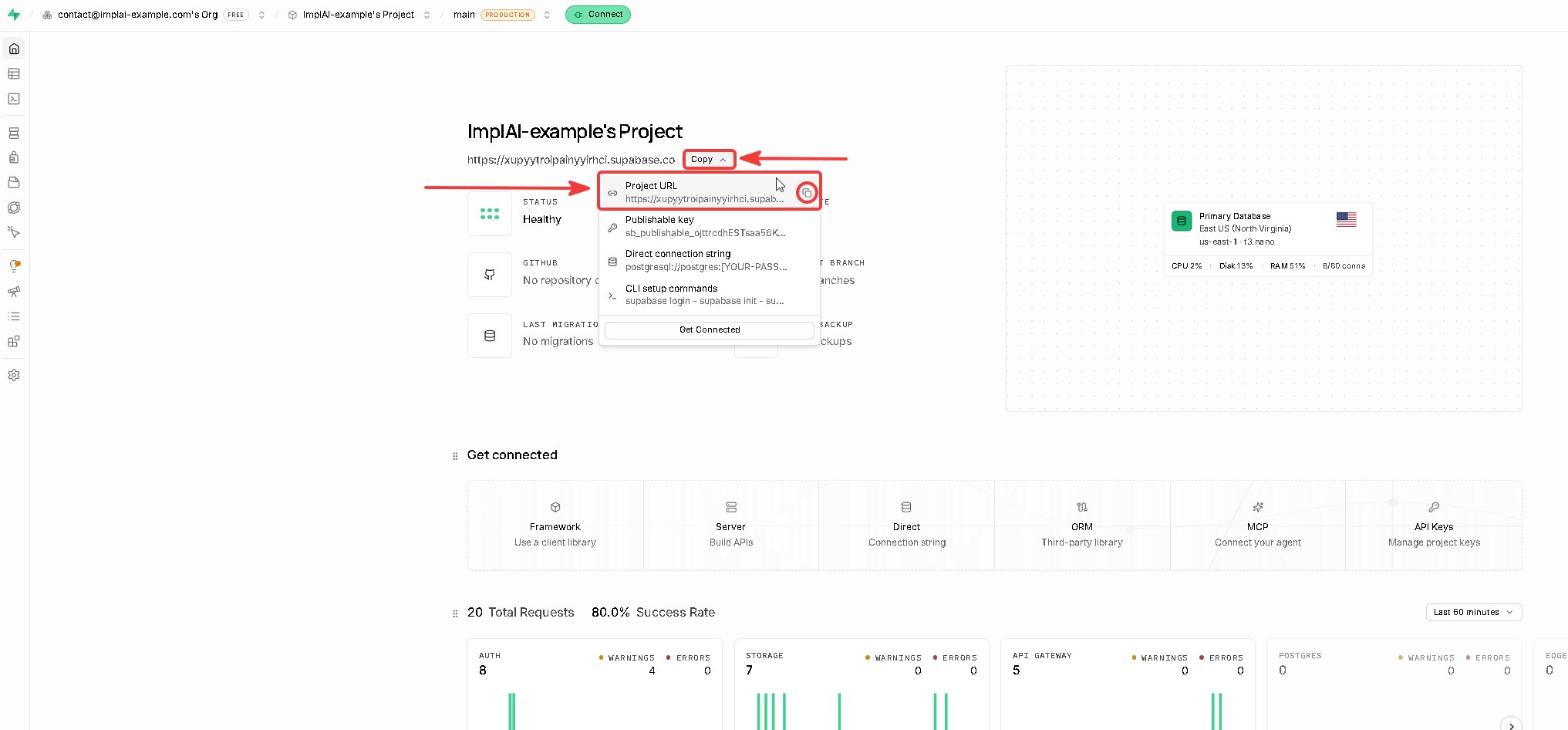
NEXT_PUBLIC_SUPABASE_URL in Vercel and save.